Hello screen
SDK 1.xWritten for core 1.53+ and gui 1.23+.
Goal: the smallest complete app, running in the PC simulator and on the CrossPad: it registers itself, builds a screen the encoder can drive, answers the power button, closes itself, and opens again cleanly.
You need:
- For the simulator: a PC simulator checkout that builds and runs.
- For the board: Start here done, including the crosspad-hil venv from 1. Set up the toolchain, which opens the app on the board.
- A clone of crosspad-examples (Where the examples live). Run the
install.pycommands below from that clone.
You need no pads, no sound and no MIDI for this recipe. If you have not read it yet, How an app works is the reference this page leans on; you can read it after this recipe.
What you will build
Section titled “What you will build”Hello screen is one C++ file of about 150 lines. It shows a title, a Press me button with a line that counts the presses, a Details button that opens a panel inside the app, and a Close button that closes the app. The encoder moves between the buttons and clicks them, the touch screen (the mouse in the simulator) taps them, and a short click of the power button closes the panel first and the app second.
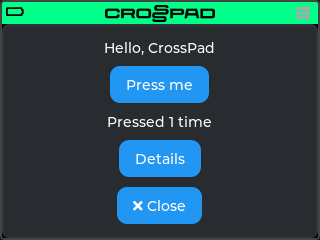
The example folder has the layout every app uses:
| File | What it is |
|---|---|
crosspad-app.json | The manifest: id example-hello-screen, name, version, the core and gui versions it needs (>=1.53.0, >=1.23.0) |
CMakeLists.txt | The ESP-IDF component. The simulator does not run it: it compiles src/*.cpp itself (also the subfolders of src/ only if this file uses GLOB_RECURSE) and adds include/ |
src/HelloScreenApp.cpp | The app: create, destroy, the callbacks and the registration line |
include/example-hello-screen/HelloModel.hpp, tests/ | The counter’s text as plain C++, with a Catch2 test that runs on your computer |
assets/example-hello-screen.png | The icon, 48 × 48 px |
Run it on the simulator
Section titled “Run it on the simulator”Copy the example into your simulator checkout. Run this from your crosspad-examples clone.
Terminal window python3 tools/install.py --target pc ~/crosspad-pc hello-screenTerminal window python tools\install.py --target pc C:\crosspad-pc hello-screenYou should see:
installed example-hello-screen -> …/src/apps/crosspad-example-hello-screen.Rebuild the simulator. The build looks for apps while CMake configures, so configure again before you build.
cmake -B buildreuses the settings of your first build, which CMake keeps inbuild/.Terminal window cd ~/crosspad-pccmake -B buildcmake --build buildIn the x64 Native Tools Command Prompt, as in step 4 of the Windows tab of PC simulator:
Terminal window cd /d C:\crosspad-pccmake -B buildcmake --build buildYou should see: a line starting
-- App submodule: crosspad-example-hello-screenwhile CMake configures, and a build that ends withouterror.If not: a new app does not show up.
Start the simulator, from the same folder.
Terminal window ./bin/CrossPadTerminal window bin\CrossPad.exeYou should see: the CrossPad window with the launcher, and a tile labelled HelloScreen among the apps.
Click the HelloScreen tile.
You should see: “Hello, CrossPad”, Press me, “Pressed 0 times”, Details and ✕ Close. The encoder’s focus is on Press me, but an app opened with a mouse click shows no focus ring until you turn the wheel.
-
Use it with the simulator’s controls. The encoder is the mouse wheel (turn) and the middle mouse button (press). The power button is the round button under the encoder on the window, or the Space key. A left click on the screen is a tap.
-
Press the encoder on Press me, or click it.
You should see: “Pressed 1 time”, then “Pressed 2 times”.
-
Open Details, then press the power button once.
You should see: the panel “A panel inside the app.” while it is open, and the main screen of the app again after the power button; the app stays open. While the panel is up, the encoder and the mouse do nothing to the buttons behind it.
-
Press the power button again, or choose ✕ Close.
You should see: the launcher.
-
-
Open HelloScreen a second time.
You should see: “Pressed 0 times”. The count starts over because create resets it; What outlives the screen explains why it has to.
The simulator runs this app the same as the board does. It differs only in the screen around it: the simulator has a status bar at the top where the board has the transport bar, so the app area is 320×218 in the simulator and 320×210 on the board.
Run it on the CrossPad
Section titled “Run it on the CrossPad”Step 1 runs from your crosspad-examples clone. The steps after it run in the firmware project (~/CrossPad, Windows C:\CrossPad\firmware) in a terminal with ESP-IDF loaded, as in 2. Build the firmware. Used the one-line installer? Use crosspad-idf in place of idf.py.
Copy the example into the firmware project.
Terminal window python3 tools/install.py --target idf ~/CrossPad hello-screenTerminal window python tools\install.py --target idf C:\CrossPad\firmware hello-screenYou should see:
installed example-hello-screen -> …/components/crosspad-example-hello-screen.Clean the build folder and build. The firmware looks for apps only when it configures from scratch, hence the
fullclean. The lines are for a v2 board (PCB r20).Terminal window cd ~/CrossPadidf.py -B build_v2 fullcleanidf.py -B build_v2 -DSDKCONFIG=sdkconfig.v2 buildTerminal window cd C:\CrossPad\firmwareidf.py -B build_v2 fullcleanidf.py -B build_v2 "-DSDKCONFIG=sdkconfig.v2" buildFor a v1 board (PCB r16 / r19), use
build_v1in both commands andsdkconfig.v1in the second.You should see:
Generated app_registry_init.cpp with N apps: …;HelloScreen;…while CMake configures, andProject build complete. To flash, run:at the end.If not: build stops before Project build complete. If the build completes but
HelloScreenis not in the list: a new app does not show up.Flash the firmware, then the assets, which hold the app's icon and go to the board separately. Answer the board as in 3. Flash the board: Allow, then Update, then leave it alone for 10 seconds.
Terminal window python3 tools/ota_flash.pypython3 tools/fs_transfer.py assetsTerminal window python tools\ota_flash.pypython tools\fs_transfer.py assetsYou should see:
OTA complete!from the first command andAssets written and verified. The device is restarting.from the second.If not: OTA flash cannot find the board, or OTA times out waiting for confirmation.
Open the app. On the board, hit pad 1 on the MODE map to open the Sampler. Then, with the board on USB, start the app with the crosspad-hil command-line tool, from the venv you made in 1. Set up the toolchain. Used the one-line installer? Skip the first line:
crosspad-hilalready works.Terminal window . ~/CrossPad/.venv/bin/activatecrosspad-hil app start HelloScreenTerminal window C:\CrossPad\firmware\.venv\Scripts\Activate.ps1crosspad-hil app start HelloScreenYou should see:
running=HelloScreenin the terminal.If not: the command needs the board in MIDI + Serial mode: run
crosspad-hil usb-mode set default, press Allow on the board, and start the app again.unknown app: the firmware on the board has no app of that name;crosspad-hil app listlists the ones it has, and step 2's configure line shows whether the build found it. No board found: OTA flash cannot find the board.You should see: on the board, the app’s screen under the transport bar, as in the simulator, with the encoder’s focus on Press me.
-
Turn the encoder, press it, and use the power button with short clicks.
You should see: the focus moves Press me → Details → ✕ Close, then on to the transport bar’s keys (MODE first): the framework adds them to the end of every app’s encoder group. A press on Press me gives “Pressed 1 time”. With the panel open, the first power click closes the panel and the app stays; the second closes the app and the MODE map comes back.
Test it on your computer
Section titled “Test it on your computer”The counter’s text is plain C++ in HelloModel.hpp, and tests/test_hello_screen.cpp checks it on your computer, with no board and no LVGL.
The test build needs a crosspad-core checkout: your simulator clone has one in lib/crosspad-core. The first configure downloads Catch2. Run it from your crosspad-examples clone.
cmake -S tests -B tests/build -G Ninja -DCROSSPAD_CORE_DIR="$(cd ~/crosspad-pc/lib/crosspad-core && pwd)"cmake --build tests/buildctest --test-dir tests/build -R hello-screen --output-on-failureIn the x64 Native Tools Command Prompt, after cd /d to your crosspad-examples folder:
cmake -S tests -B tests\build -G Ninja -DCROSSPAD_CORE_DIR=C:\crosspad-pc\lib\crosspad-corecmake --build tests\buildctest --test-dir tests\build -R hello-screen --output-on-failureYou should see: 100% tests passed, 0 tests failed out of 1. The build compiles the tests of every example in the clone; -R hello-screen runs only this recipe's.
How it works
Section titled “How it works”The whole app is in src/HelloScreenApp.cpp. In short, this is what runs when:
- Open. Opening the app calls the
Appobject’sstart(). The framework records the encoder’s current group, then calls create on the LVGL task. - Use. Clicks, encoder turns and taps call the app’s callbacks, on the LVGL task.
- Back. A short power click goes to the most local thing first, then to the app’s back handler.
trueends it there.false, or the ✕ Close button, callsdestroyAppAsync(), which only queues the close. - Close. On LVGL’s next cycle, after the click is over,
destroyApp()calls destroy and then points the encoder back at the group it recorded. The group and the root, which destroy hands to deferred deletes, go after that. - Open again. Back to 1, with the file-scope variables as the last visit left them, so create resets them.
Here is the file in reading order.
The headers
Section titled “The headers”The file starts with its includes. The first block picks the app class: App has the same name on both targets, but each target declares its own: the simulator’s is pc_stubs/PcApp.hpp, the firmware’s is crosspad-gui/app/App.hpp. Both derive from AppBase, which has every method this app calls. __has_include picks whichever the build has, so one source file builds for both. The rest are the same on both targets: the registration macro, the GUI platform and helper functions, LVGL and the app’s own model.
#if __has_include("pc_stubs/PcApp.hpp") #include "pc_stubs/PcApp.hpp" // the simulator's App#else #include "crosspad-gui/app/App.hpp" // the firmware's App#endif#include "crosspad/app/AppRegistrar.hpp"#include "crosspad-gui/platform/IGuiPlatform.h"#include "crosspad-gui/widgets/gui_helpers.h"#include "lvgl.h"#include "example-hello-screen/HelloModel.hpp"Source: examples/01-hello-screen/src/HelloScreenApp.cpp, lines 3–12 (repository opens soon)
lv_obj_t* s_root = nullptr; // the app's screenlv_obj_t* s_count = nullptr; // "Pressed N times"lv_obj_t* s_details = nullptr; // a panel the power button closes firstlv_group_t* s_group = nullptr; // what the encoder walksint s_presses = 0;Source: examples/01-hello-screen/src/HelloScreenApp.cpp, lines 22–26 (repository opens soon)
The app keeps its state in file-scope variables in an anonymous namespace. The callbacks LVGL and the framework call are plain function pointers that cannot capture anything, so this is where they find the widgets. These variables live until the board powers off, much longer than the screen: on the second visit they still hold what the first visit left. With this destroy that is only the counter, because destroy sets the pointers back to null. Create still resets everything first, so each visit starts independent of the last.
Registration
Section titled “Registration”REGISTER_APP(HelloScreen, nullptr, "example-hello-screen.png", HelloScreen_create, HelloScreen_destroy, nullptr, nullptr, nullptr, 0)Source: examples/01-hello-screen/src/HelloScreenApp.cpp, lines 152–154 (repository opens soon)
REGISTER_APP defines a function, _register_HelloScreen_app(). Nothing in your code calls it. While the firmware configures, the build scans the src/*.cpp files of every app component for this macro and generates a registry that calls each of these functions at boot; the simulator does the same with the apps in its src/apps/. The function adds an entry to the app registry: the name, the icon, and your two functions. The framework makes one App object per entry, and that object lives until power-off.
The arguments, in order:
HelloScreen: the app’s name. It is the label in the simulator’s launcher, the nameapp startandmode_overlay_open_app()take, and part of the generated function’s name, so it must be a C++ identifier and unique.nullptr: ignored."example-hello-screen.png": the icon’s file name in the app’sassets/folder. Every app’s icons end up in one folder, so name it after the app id.HelloScreen_create,HelloScreen_destroy: your two functions.nullptr, nullptr, nullptr: ignored.0: the priority; higher sorts earlier in the app list.
The firmware links app components as libraries, and a linker drops a function that nothing references. set_property(TARGET ${COMPONENT_LIB} PROPERTY WHOLE_ARCHIVE ON) in the example’s CMakeLists.txt keeps the registration function. What an app is has the full table of arguments, including REGISTER_APP_PL for an app that owns the pads.
Create
Section titled “Create”lv_obj_t* HelloScreen_create(lv_obj_t* parent, App* app){ s_group = nullptr; s_root = nullptr; s_count = nullptr; s_details = nullptr; s_presses = 0;
// The encoder drives whichever group is on it. This app's buttons go in // its own group; the framework gives the encoder back when the app closes. if (lv_indev_t* enc = crosspad_gui::getGuiPlatform().getNavigationEncoder()) { s_group = lv_group_create(); lv_indev_set_group(enc, s_group); }
lv_obj_t* root = lv_obj_create(parent); s_root = root; lv_obj_set_size(root, LV_PCT(100), LV_PCT(100)); lv_obj_set_flex_flow(root, LV_FLEX_FLOW_COLUMN); lv_obj_set_flex_align(root, LV_FLEX_ALIGN_CENTER, LV_FLEX_ALIGN_CENTER, LV_FLEX_ALIGN_CENTER); lv_obj_remove_flag(root, LV_OBJ_FLAG_SCROLLABLE);
lv_obj_t* title = lv_label_create(root); lv_label_set_text(title, "Hello, CrossPad");
add_button(root, "Press me", on_press, nullptr); s_count = lv_label_create(root); lv_label_set_text(s_count, example_hello::pressedLabel(0).c_str()); add_button(root, "Details", on_details, nullptr); add_button(root, LV_SYMBOL_CLOSE " Close", on_close, app);
s_details = lv_obj_create(parent); // on top of root, hidden until asked lv_obj_set_size(s_details, LV_PCT(100), LV_PCT(100)); lv_obj_set_style_bg_opa(s_details, LV_OPA_COVER, 0); lv_obj_set_style_pad_all(s_details, 16, 0); lv_obj_t* note = lv_label_create(s_details); lv_label_set_text(note, "A panel inside the app.\n\n" "Click the power button:\nthis panel closes, the app stays."); lv_obj_set_hidden(s_details, true);
app->setOnBack(on_back); return root;}Source: examples/01-hello-screen/src/HelloScreenApp.cpp, lines 90–132 (repository opens soon)
The framework calls create on the LVGL task when the app opens, with parent set to the app area (the part of the screen under the transport bar) and app set to your App object. Create builds the screen under parent and returns its root. In order:
- Reset the statics. Every variable from the state block goes back to its starting value, because the last visit left its values in them.
- Take the encoder. LVGL sends the encoder’s turns and clicks to one group of objects at a time. The app makes its own group and points the encoder at it with
lv_indev_set_group. The encoder comes fromcrosspad_gui::getGuiPlatform().getNavigationEncoder(), which returns null on a platform without one, so the group is made only when there is an encoder. The app does not save or restore the group the encoder had before: the framework records it before create runs and gives it back after destroy. - Build the screen. The root fills the app area and lays out its children in a centred column.
add_buttoncreates each button, connects its click callback, and adds it to the group when there is one; the first button added, Press me, gets the focus. The Close button carries theApp*as the callback’s user data, which is safe because theAppobject outlives the screen. - Build the panel. The Details panel is created on
parent, next to the root and after it, so it draws on top of the root and covers the whole app area. It starts hidden (lv_obj_set_hiddensets or clears LVGL’s hidden flag). Because it is not a child of the root, deleting the root does not delete it; destroy deletes it itself. - Set the back handler with
setOnBack, here whereappis at hand.
add_button sits above create in the file:
lv_obj_t* add_button(lv_obj_t* parent, const char* text, lv_event_cb_t cb, void* user){ lv_obj_t* b = lv_button_create(parent); lv_obj_add_event_cb(b, cb, LV_EVENT_CLICKED, user); lv_obj_t* l = lv_label_create(b); lv_label_set_text(l, text); lv_obj_center(l); if (s_group) lv_group_add_obj(s_group, b); return b;}Source: examples/01-hello-screen/src/HelloScreenApp.cpp, lines 75–84 (repository opens soon)
Its last line is the one that makes the encoder work: a button that is not in the group cannot be reached with the encoder, only tapped. Create sets s_group before it builds any button, and leaves it null when there is no encoder, so the same code runs with or without one.
The Press me button
Section titled “The Press me button”void on_press(lv_event_t*){ ++s_presses; lv_label_set_text(s_count, example_hello::pressedLabel(s_presses).c_str());}Source: examples/01-hello-screen/src/HelloScreenApp.cpp, lines 30–34 (repository opens soon)
LVGL calls the click callback on the LVGL task, so it may change widgets directly. lv_label_set_text copies the text, so the temporary string can go away right after the call. The text itself comes from example_hello::pressedLabel() in HelloModel.hpp, plain C++ without LVGL, which the host test in tests/ checks (“Pressed 1 time”, “Pressed 12 times”). Keep logic you can test out of the LVGL code in the same way.
A panel inside the app
Section titled “A panel inside the app”// A panel on top does not stop the encoder: it still clicks whatever is// focused behind it. A disabled button is skipped by the encoder and ignores// its click, so the screen is disabled while the panel is up.void show_details(bool show){ lv_obj_set_hidden(s_details, !show); for (uint32_t i = 0; i < lv_obj_get_child_count(s_root); ++i) lv_obj_set_state(lv_obj_get_child(s_root, i), LV_STATE_DISABLED, show);}
void on_details(lv_event_t*) { show_details(true); }Source: examples/01-hello-screen/src/HelloScreenApp.cpp, lines 38–48 (repository opens soon)
Covering the buttons does not take them out of the encoder’s group: with the panel up, the focused Details button stays focused, and an encoder press would click it, or Close, behind the panel. So show_details disables every child of the root while the panel is shown. LVGL’s group navigation skips disabled objects, and a disabled button ignores a click. When the panel hides, the same loop enables them again. on_details, the Details button’s callback, only shows the panel; the back handler below hides it.
The power button
Section titled “The power button”// The power button's click. true = handled here (the panel closes);// false = let the framework close the app.bool on_back(lv_obj_t*){ if (s_details && !lv_obj_has_flag(s_details, LV_OBJ_FLAG_HIDDEN)) { show_details(false); return true; } return false;}Source: examples/01-hello-screen/src/HelloScreenApp.cpp, lines 62–71 (repository opens soon)
A short click of the power button is the CrossPad’s “back”. The framework asks the most local thing first (an open dropdown, a dialog registered with ui_back_push, a slider being turned, the transport bar if the focus is on it) and only then the app, through this handler. Return true when the click was used here (the panel closed and the app stays open), and false to let the framework close the app. Without a handler, the click closes the app. The handler is a plain function, so it finds the panel through the file-scope s_details.
The Close button
Section titled “The Close button”void on_close(lv_event_t* e){ // Never destroyApp() from inside an event: it tears the app down while LVGL // is still delivering the click. destroyAppAsync() waits for the event to end. auto* app = static_cast<App*>(lv_event_get_user_data(e)); app->destroyAppAsync();}Source: examples/01-hello-screen/src/HelloScreenApp.cpp, lines 52–58 (repository opens soon)
The app closes itself with destroyAppAsync(). It does not call destroyApp() here, because this callback is running on the Close button, and destroyApp() would run the whole teardown inside that click: the framework marks the app stopped and swaps the encoder’s group while LVGL is still delivering the click, and a destroy that deletes widgets right away frees the very button LVGL is delivering to. (This example’s destroy deletes everything with deferred calls, so that last part does not apply to it; it does apply to a destroy that calls lv_obj_delete.) destroyAppAsync() queues the close and returns; the framework runs it after the event is over. destroyAppAsync() itself changes LVGL’s internal lists, so call it on the LVGL task, as this callback is. The power button’s close goes through destroyAppAsync() too.
Destroy
Section titled “Destroy”void HelloScreen_destroy(lv_obj_t* root){ // root is null when the app's screen was already wiped: free what is ours, delete nothing. if (s_group) { lv_group_delete_deferred(s_group); // the encoder may still be mid-read s_group = nullptr; } if (root && s_details) lv_obj_delete_async(s_details); s_details = nullptr; s_root = nullptr; s_count = nullptr; if (root) lv_obj_delete_async(root);}Source: examples/01-hello-screen/src/HelloScreenApp.cpp, lines 136–148 (repository opens soon)
The framework calls destroy on the LVGL task when the app closes, with the root that create returned. Destroy frees everything create made:
- The group, with
lv_group_delete_deferredfrom crosspad-gui rather thanlv_group_delete. Destroy can run while the encoder is still processing the click that led to it, and LVGL reads the group again after the click callback returns; the deferred delete waits until that read is over. - The panel, because it is not under the root.
- The root, last, with
lv_obj_delete_async, which deletes it on LVGL’s next cycle, after whatever event is running now.
The pointers go back to null so nothing can use a deleted widget. After destroy returns, the framework points the encoder back at the group it had before the app opened.
When destroy is called with a null root, everything under parent is already gone, so destroy frees the group and deletes nothing, as this code does.
Pitfalls
Section titled “Pitfalls”The rules this example follows, and what you get when you break one:
- Close with
destroyAppAsync(), neverdestroyApp()from a widget’s callback.destroyApp()runs the teardown in the middle of the event and swaps the encoder’s group under it; if your destroy deletes the widget whose event LVGL is still delivering, LVGL reads freed memory. - Delete your group with
lv_group_delete_deferred. Withlv_group_deletein destroy, a close that comes from an encoder click frees the group while LVGL still reads it: aLoadProhibitederror inlv_obj_get_stateon the LVGL task. - Do not restore the encoder’s old group yourself. The framework does it after destroy. A group you saved can be deleted by then, and a deleted group put back on the encoder fails the next encoder read (
LoadProhibitedinlv_group_get_focused). If you must restore one, uselv_indev_restore_group, which skips a deleted group. - Reset every file-scope variable at the top of create. Otherwise the second visit starts with the first visit’s values: the counter carries on from where it stopped, and a pointer left over from the last visit can point at a deleted widget.
- Make an in-app panel modal for the encoder. If you only show the panel, the encoder still clicks the focused button behind it: Close closes the app from under the panel, Press me counts where nobody sees it. Disable what the panel covers, and enable it again when the panel closes.
- Delete everything you created on
parent. Only the root goes with the root. A panel created onparentand not deleted in destroy stays in the app area after the app closes, one more hidden panel each visit. - Return
falsefrom the back handler when there is nothing of yours to close. A handler that always returnstrueleaves the power button no way to close the app. - Keep the registration in a
.cppfile undersrc/, keepWHOLE_ARCHIVE ON, and reconfigure after you add an app. Break any of these and the app is not in the launcher; When something goes wrong lists each cause.
- Pads and LEDs: the next recipe; an app that owns the pads.
- How an app works: the lifecycle, the threads and the memory rules behind this page.
AppBasein the App API:setOnBack,destroyAppAsyncand the rest of the app class.- The example’s folder (
examples/01-hello-screenin crosspad-examples, which is not public yet) in crosspad-examples.