Pads and LEDs
SDK 1.xWritten for core 1.53+ and gui 1.23+.
Goal: an app that takes over the 16 pads while it is open, lights each pad in its own colour (harder hits brighter), draws the grid on the screen, and hands the pads back cleanly when it closes.
You need: Start here done, or only the PC simulator; the examples cloned; Hello screen read, because this recipe builds on its create, destroy and encoder group. Pressure and the Rainbow frame show on a CrossPad.
What you will build
Section titled “What you will build”The app registers a pad logic, an IPadLogicHandler that gets every press, pressure change and release while the app is open. The logic lights the pads and records a level per pad; it never touches the screen. A timer on the LVGL task reads those levels and paints a 4 × 4 grid laid out like the pads (pad 1 bottom-left), plus a label naming the last pad hit. A Rainbow button shows a full 16-pad frame with PadAnimator on the board.
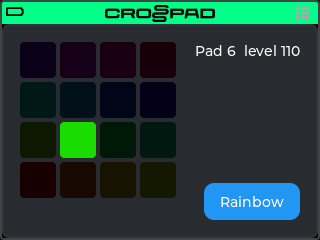
The picture is the simulator, a moment after pad 6 was hit at velocity 110 through its remote-control port (Softer hits on the simulator). A mouse click hits at 127.
The code is in the example folder (examples/02-pads-leds in crosspad-examples, which is not public yet): src/PadsLedsApp.cpp (the screen), src/PadsLedsPadLogic.cpp with its header (the pads), and include/example-pads-leds/PadsModel.hpp (the colours, plain C++ with a host test in tests/).
Run it on the simulator
Section titled “Run it on the simulator”Copy the example into your simulator checkout. Run this from your crosspad-examples clone.
Terminal window python3 tools/install.py --target pc ~/crosspad-pc pads-ledsTerminal window python tools\install.py --target pc C:\crosspad-pc pads-ledsYou should see:
installed example-pads-leds -> …/src/apps/crosspad-example-pads-leds.Rebuild the simulator. The build looks for apps while CMake configures, so configure again before you build.
cmake -B buildreuses the settings of your first build, which CMake keeps inbuild/.Terminal window cd ~/crosspad-pccmake -B buildcmake --build buildIn the x64 Native Tools Command Prompt, as in step 4 of the Windows tab of PC simulator:
Terminal window cd /d C:\crosspad-pccmake -B buildcmake --build buildYou should see: a line starting
-- App submodule: crosspad-example-pads-ledswhile CMake configures, and a build that ends withouterror.If not: a new app does not show up.
Start the simulator, from the same folder.
Terminal window ./bin/CrossPadTerminal window bin\CrossPad.exeYou should see: the CrossPad window with the launcher, and a tile labelled PadsLeds among the apps.
Click the PadsLeds tile.
You should see: a 4 × 4 grid of dim squares in sixteen colours on the screen,
Hit a padat the top right and a Rainbow button at the bottom right. The simulator’s pads glow in the same colours: pad 1 (bottom-left) red, then round the colour wheel through yellow, green, cyan, blue and magenta to pad 16.-
Click a pad in the simulator window and hold the mouse button.
You should see: the pad and its square on the screen light at full brightness, and the label reads
Pad N level 127(N is the pad’s number). Release, and both go back to the dim glow; the label keeps the pad and readsPad N level 0, because 0 means released. A mouse click, or a keyboard key mapped to a pad, always hits at velocity 127, so every hit from the simulator window is a full-brightness one. -
Close the app with a short press of the power button (Space or Ctrl in the simulator).
You should see: the launcher again, and the pads lose the app’s colours.
Pad pressure and the Rainbow frame show on the CrossPad; in the simulator, Rainbow changes its label to Stop and back. Simulator vs CrossPad lists what differs.
Softer hits on the simulator
Section titled “Softer hits on the simulator”The simulator’s remote-control port (TCP on 127.0.0.1:19840, one JSON command per line) takes a velocity, so you can see a soft hit without a board. With the app open, save this as soft_hit.py and run it with python3 soft_hit.py (Windows: python soft_hit.py). Pads count from 0 here, so 5 is pad 6.
import socket, times = socket.create_connection(("127.0.0.1", 19840))for cmd in ('{"cmd":"pad_press","pad":5,"velocity":40}', '{"cmd":"pad_release","pad":5}'): s.sendall((cmd + "\n").encode()) print(s.recv(256).decode().strip()) time.sleep(1)You should see: {"ok":true,"pad":5,"velocity":40} in the terminal, pad 6 and its square lit at about a third of full brightness for a second, and the label Pad 6 level 40.
Run it on the CrossPad
Section titled “Run it on the CrossPad”Step 1 runs from your crosspad-examples clone. The steps after it run in the firmware project (~/CrossPad, Windows C:\CrossPad\firmware) in a terminal with ESP-IDF loaded, as in 2. Build the firmware. Used the one-line installer? Use crosspad-idf in place of idf.py.
Copy the example into the firmware project.
Terminal window python3 tools/install.py --target idf ~/CrossPad pads-ledsTerminal window python tools\install.py --target idf C:\CrossPad\firmware pads-ledsYou should see:
installed example-pads-leds -> …/components/crosspad-example-pads-leds.Clean the build folder and build. The firmware looks for apps only when it configures from scratch, hence the
fullclean. The lines are for a v2 board (PCB r20).Terminal window cd ~/CrossPadidf.py -B build_v2 fullcleanidf.py -B build_v2 -DSDKCONFIG=sdkconfig.v2 buildTerminal window cd C:\CrossPad\firmwareidf.py -B build_v2 fullcleanidf.py -B build_v2 "-DSDKCONFIG=sdkconfig.v2" buildFor a v1 board (PCB r16 / r19), use
build_v1in both commands andsdkconfig.v1in the second.You should see:
Generated app_registry_init.cpp with N apps: …;PadsLeds;…while CMake configures, andProject build complete. To flash, run:at the end.If not: build stops before Project build complete. If the build completes but
PadsLedsis not in the list: a new app does not show up.Flash the firmware, then the assets, which hold the app's icon and go to the board separately. Answer the board as in 3. Flash the board: Allow, then Update, then leave it alone for 10 seconds.
Terminal window python3 tools/ota_flash.pypython3 tools/fs_transfer.py assetsTerminal window python tools\ota_flash.pypython tools\fs_transfer.py assetsYou should see:
OTA complete!from the first command andAssets written and verified. The device is restarting.from the second.If not: OTA flash cannot find the board, or OTA times out waiting for confirmation.
Open the app. On the board, hit pad 1 on the MODE map to open the Sampler. Then, with the board on USB, start the app with the crosspad-hil command-line tool, from the venv you made in 1. Set up the toolchain. Used the one-line installer? Skip the first line:
crosspad-hilalready works.Terminal window . ~/CrossPad/.venv/bin/activatecrosspad-hil app start PadsLedsTerminal window C:\CrossPad\firmware\.venv\Scripts\Activate.ps1crosspad-hil app start PadsLedsYou should see:
running=PadsLedsin the terminal.If not: the command needs the board in MIDI + Serial mode: run
crosspad-hil usb-mode set default, press Allow on the board, and start the app again.unknown app: the firmware on the board has no app of that name;crosspad-hil app listlists the ones it has, and step 2's configure line shows whether the build found it. No board found: OTA flash cannot find the board.You should see: the grid on the screen,
Hit a pad, the Rainbow button, and all 16 pads glowing dimly in their colours, pad 1 red.-
Hit pad 5 softly, then hard. Then press and hold it, and push harder.
You should see: pad 5 lights yellow-green, and its square on the screen follows; the label reads
Pad 5 leveland a number. A quick tap shows the hit’s velocity, so a harder tap is brighter. A held pad streams its pressure, which replaces the velocity almost at once: pushing harder or softer changes the brightness and the level. Release, and the pad drops back to the dim glow and the label readsPad 5 level 0. -
Tap Rainbow (or press the encoder while it is focused).
You should see: all 16 pads at full brightness in their colours, and the button reads
Stop. Hit a pad: its square and the label change, the LEDs do not. Tap Stop: the pads go back to the app’s colours. -
Close the app with a short press of the power button.
You should see: the MODE map again, and the pads lose the app’s colours.
Test it on your computer
Section titled “Test it on your computer”PadsModel.hpp (the colour of each pad and how a level scales its brightness) has a host test, tests/test_pads_leds.cpp: plain C++ and Catch2, no board and no LVGL.
The test build needs a crosspad-core checkout: your simulator clone has one in lib/crosspad-core. The first configure downloads Catch2. Run it from your crosspad-examples clone.
cmake -S tests -B tests/build -G Ninja -DCROSSPAD_CORE_DIR="$(cd ~/crosspad-pc/lib/crosspad-core && pwd)"cmake --build tests/buildctest --test-dir tests/build -R pads-leds --output-on-failureIn the x64 Native Tools Command Prompt, after cd /d to your crosspad-examples folder:
cmake -S tests -B tests\build -G Ninja -DCROSSPAD_CORE_DIR=C:\crosspad-pc\lib\crosspad-corecmake --build tests\buildctest --test-dir tests\build -R pads-leds --output-on-failureYou should see: 100% tests passed, 0 tests failed out of 5. The build compiles the tests of every example in the clone; -R pads-leds runs only this recipe's.
How it works
Section titled “How it works”The state
Section titled “The state”std::shared_ptr<PadsLedsPadLogic> s_logic; // kept for the life of the program (see create)lv_obj_t* s_cells[16] = {}; // one square per padlv_obj_t* s_status = nullptr; // "Pad N level L"lv_timer_t* s_timer = nullptr; // redraws the cells from the recorded levelslv_group_t* s_group = nullptr; // what the encoder walkslv_obj_t* s_rainbow_label = nullptr; // "Rainbow" / "Stop"bool s_rainbow = false; // this app started the PadAnimator frameSource: examples/02-pads-leds/src/PadsLedsApp.cpp, lines 25–31 (repository opens soon)
Everything the screen needs lives at file scope, so the timer and the button callback can reach it. These variables keep their values between visits, so create sets every one back to null or false first, except s_logic, which is meant to live as long as the program (What outlives the screen). s_rainbow remembers that this app, not someone else, started the animation.
Registering the pad logic
Section titled “Registering the pad logic”// Registered once and kept: REGISTER_APP_PL below makes the framework// push it when the app opens and pop it when the app closes.if (!s_logic) { s_logic = std::make_shared<PadsLedsPadLogic>(); crosspad::getPadManager().registerPadLogic("PadsLeds", s_logic);}Source: examples/02-pads-leds/src/PadsLedsApp.cpp, lines 92–97 (repository opens soon)
registerPadLogic on getPadManager() stores the handler under a name; the last argument of REGISTER_APP_PL (below) is that same name. The framework gives the pads to that handler right after create returns, so the registration has to be done by then. The handler is created once and kept for the life of the program, so nothing the pad callbacks use is ever freed. Keeping it also means one registration for every visit, and the timer can read s_logic without a null check.
The pad logic class
Section titled “The pad logic class”/// Pad callbacks run on the pad task, not the LVGL task: this class lights/// the pads and records levels, and touches no LVGL object.class PadsLedsPadLogic : public crosspad::IPadLogicHandler {public: void onActivate(crosspad::PadManager& pm) override; void onDeactivate(crosspad::PadManager& pm) override; void onPadPress(crosspad::PadManager& pm, uint8_t pad, uint8_t velocity) override; void onPadRelease(crosspad::PadManager& pm, uint8_t pad) override; void onPadPressure(crosspad::PadManager& pm, uint8_t pad, uint8_t pressure) override;
/// 0 = released; otherwise the latest velocity or pressure (1..127). uint8_t level(uint8_t pad) const { return pad < 16 ? levels_[pad].load() : 0; } int lastPad() const { return lastPad_.load(); }
private: std::atomic<uint8_t> levels_[16]{}; std::atomic<int> lastPad_{-1};};Source: examples/02-pads-leds/include/example-pads-leds/PadsLedsPadLogic.hpp, lines 8–25 (repository opens soon)
The handler implements the five callbacks of IPadLogicHandler it needs and keeps two things the screen reads: a level per pad (0 when released, else the latest velocity or pressure) and the last pad hit (−1 before the first hit). Both are std::atomic, because the pad task writes them while the LVGL task reads them. level() and lastPad() are the only way the screen sees them.
void light(crosspad::PadManager& pm, uint8_t pad, uint8_t level){ const auto c = padColor(pad, level); pm.setPadColor(pad, c.r, c.g, c.b);}Source: examples/02-pads-leds/src/PadsLedsPadLogic.cpp, lines 10–14 (repository opens soon)
light is a file-local helper in PadsLedsPadLogic.cpp: it turns a pad and a level into the pad’s colour and sets it with the (pad, r, g, b) form of setPadColor. Every callback below lights the pads through it.
Getting and giving back the pads
Section titled “Getting and giving back the pads”void PadsLedsPadLogic::onActivate(crosspad::PadManager& pm){ for (uint8_t p = 0; p < 16; ++p) { levels_[p].store(0); light(pm, p, example_pads::kRestLevel); } lastPad_.store(-1); // a new visit starts with no "last pad"}
void PadsLedsPadLogic::onDeactivate(crosspad::PadManager& pm){ // Hand the LEDs back: the next pad logic paints its own colours. for (uint8_t p = 0; p < 16; ++p) pm.clearPadColor(p);}Source: examples/02-pads-leds/src/PadsLedsPadLogic.cpp, lines 19–32 (repository opens soon)
onActivate runs each time the app opens and gets the pads. It clears the recorded levels and paints every pad at the rest level with light, so the colours show before the first hit. It also resets the last pad to −1: without that, a second visit shows the previous visit’s Pad N level L before you touch anything. onDeactivate runs when the app closes and calls clearPadColor on every pad; a colour you set stays on the pad until you clear it, even after your app is gone.
Pad callbacks: light and record, nothing else
Section titled “Pad callbacks: light and record, nothing else”void PadsLedsPadLogic::onPadPress(crosspad::PadManager& pm, uint8_t pad, uint8_t velocity){ if (pad >= 16) return; const uint8_t v = velocity ? velocity : 1; light(pm, pad, v); levels_[pad].store(v); // the screen reads these on the LVGL task lastPad_.store(pad);}
void PadsLedsPadLogic::onPadPressure(crosspad::PadManager& pm, uint8_t pad, uint8_t pressure){ if (pad >= 16 || levels_[pad].load() == 0) return; // aftertouch only while held const uint8_t v = pressure ? pressure : 1; light(pm, pad, v); levels_[pad].store(v);}
void PadsLedsPadLogic::onPadRelease(crosspad::PadManager& pm, uint8_t pad){ if (pad >= 16) return; light(pm, pad, example_pads::kRestLevel); levels_[pad].store(0);}Source: examples/02-pads-leds/src/PadsLedsPadLogic.cpp, lines 36–58 (repository opens soon)
These run on a pad task, not the LVGL task, and two of them can run at the same time (Threads). So they light the LED through the PadManager they are handed, store the level in a std::atomic, and touch no LVGL object. While this logic has the pads, PadManager does nothing of its own for a press or a release (no default light, no MIDI note, no bus event): what the pads show is what this code sets.
onPadPress turns a velocity of 0 into 1, because a level of 0 means “released” to the timer. onPadPressure (aftertouch) ignores a pad whose level is 0, so a pressure value that arrives after the release cannot light a pad that is no longer held. onPadRelease goes back to the rest level. The colour itself comes from padColor(pad, level) in PadsModel.hpp: the pad’s hue, scaled by the level from 0 to 127.
The grid on the screen
Section titled “The grid on the screen”// The screen is a picture of the pads: row 0 on screen is pads 13-16.const int32_t cell = 36, gap = 4;for (int row = 0; row < 4; ++row) { for (int col = 0; col < 4; ++col) { const int pad = (3 - row) * 4 + col; lv_obj_t* c = lv_obj_create(root); lv_obj_remove_style_all(c); lv_obj_set_size(c, cell, cell); lv_obj_set_pos(c, col * (cell + gap), row * (cell + gap)); lv_obj_set_style_radius(c, 4, 0); lv_obj_set_style_bg_opa(c, LV_OPA_COVER, 0); s_cells[pad] = c; }}Source: examples/02-pads-leds/src/PadsLedsApp.cpp, lines 110–123 (repository opens soon)
create lays the cells out the way the player sees the pads: pad 1 bottom-left, so the top row on the screen is pads 13 to 16 (The screen). Row 0 is the top of the screen, and the index in s_cells is the pad index, counted from 0, so the timer can walk the cells in pad order:
          col 0  col 1  col 2  col 3row 0      12     13     14     15      (pads 13-16)row 1       8      9     10     11row 2       4      5      6      7row 3       0      1      2      3      (pads 1-4)
index = (3 - row) * 4 + col        pad number = index + 1
Flip the rows and pad 1 lights the top-left square instead: the one mistake every pad-mirroring screen makes once.
The timer that draws
Section titled “The timer that draws”// Runs on the LVGL task every 33 ms: reads what the pad task recorded, draws it.void tick(lv_timer_t*){ for (uint8_t p = 0; p < 16; ++p) { const uint8_t lvl = s_logic->level(p); const auto c = example_pads::padColor(p, lvl ? lvl : example_pads::kRestLevel); lv_obj_set_style_bg_color(s_cells[p], lv_color_make(c.r, c.g, c.b), 0); } const int last = s_logic->lastPad(); if (last >= 0) { lv_label_set_text_fmt(s_status, "Pad %d level %u", last + 1, static_cast<unsigned>(s_logic->level(static_cast<uint8_t>(last)))); }}Source: examples/02-pads-leds/src/PadsLedsApp.cpp, lines 35–48 (repository opens soon)
create starts this with lv_timer_create(tick, 33, nullptr). LVGL runs its timers on the LVGL task, so this is the one place that turns the recorded levels into pixels. Reading atomics from a timer needs no lock and no queue between the two tasks. The label shows the last pad hit and that pad’s level now, so after a release it reads Pad N level 0; before the first hit of a visit lastPad() is −1 and the label keeps Hit a pad.
A whole-pad frame with PadAnimator
Section titled “A whole-pad frame with PadAnimator”// PadAnimator holds a whole frame until stop(): while it shows, pad presses// do not repaint the LEDs. Good for a moment, not for playing.// The rainbow starts only while isActive() is false, so it never paints over// an animation of the board's own.void on_rainbow(lv_event_t*){ auto& anim = crosspad::getPadAnimator(); if (s_rainbow && anim.isActive()) { anim.stop(); s_rainbow = false; lv_label_set_text(s_rainbow_label, "Rainbow"); return; } s_rainbow = false; lv_label_set_text(s_rainbow_label, "Rainbow"); if (anim.isActive()) return; crosspad::RgbColor frame[crosspad::PadAnimator::kPadCount]; for (uint8_t p = 0; p < 16; ++p) { const auto c = example_pads::wheel(p); frame[p] = crosspad::RgbColor(c.r, c.g, c.b); } anim.showFrame(frame); s_rainbow = true; lv_label_set_text(s_rainbow_label, "Stop");}Source: examples/02-pads-leds/src/PadsLedsApp.cpp, lines 52–76 (repository opens soon)
getPadAnimator() returns the board’s one animator. showFrame puts one RgbColor per pad on the LEDs and holds it until stop(), another frame or another animation. While it shows, the LED controller ignores every other colour change, so pad hits do not light the LEDs. The colours the pad logic sets in the meantime are still recorded, and stop() repaints them: that is why the pads come back in the app’s colours after Stop.
The callback starts a frame only when isActive() is false, so it never paints over an animation the board is showing, such as a firmware update’s progress bar. It stops only a frame it started (s_rainbow), and checks isActive() first because something else can have ended the frame since. In that case the button still reads Stop, and tapping it starts a new rainbow.
Destroy
Section titled “Destroy”void PadsLeds_destroy(lv_obj_t* root){ // root is null when the app's screen was already wiped: free what is ours, delete nothing. if (s_rainbow && crosspad::getPadAnimator().isActive()) crosspad::getPadAnimator().stop(); s_rainbow = false; s_rainbow_label = nullptr; lv_timer_delete(s_timer); s_timer = nullptr; if (s_group) { lv_group_delete_deferred(s_group); s_group = nullptr; } for (auto& c : s_cells) c = nullptr; s_status = nullptr; if (root) lv_obj_delete_async(root);}Source: examples/02-pads-leds/src/PadsLedsApp.cpp, lines 142–154 (repository opens soon)
By the time destroy runs, the framework has already taken the pads back (onDeactivate has run). Destroy stops the rainbow if this app’s frame is still showing: left running, the frame would stay on the LEDs after the app closed, and no pad would light for anyone. It deletes the timer before the root goes, so tick never runs on deleted cells, deletes the encoder group with lv_group_delete_deferred because the encoder may still be reading it, sets every widget pointer back to null, and deletes the root last, asynchronously. It does not unregister the pad logic: that stays registered for the next visit.
Registration
Section titled “Registration”REGISTER_APP_PL(PadsLeds, nullptr, "example-pads-leds.png", PadsLeds_create, PadsLeds_destroy, nullptr, nullptr, nullptr, 0, "PadsLeds")Source: examples/02-pads-leds/src/PadsLedsApp.cpp, lines 158–160 (repository opens soon)
REGISTER_APP_PL is REGISTER_APP with a tenth argument: the name of the pad logic to give the pads to while the app is open. It must match the string passed to registerPadLogic exactly. How an app works explains the other nine arguments.
Pitfalls
Section titled “Pitfalls”| Rule this example follows | What happens if you break it |
|---|---|
The pad logic touches no LVGL object; it writes atomics that an lv_timer reads | LVGL state gets out of step, and the screen misbehaves now and then, usually only on the board |
onActivate resets everything a visit shows, including the last pad | A second visit opens with the previous visit’s label (Pad N level L) before any hit |
| create resets every file-scope variable first | The second visit uses pointers to widgets the first visit deleted |
onDeactivate calls clearPadColor on every pad it coloured | The pads keep the app’s colours at rest after it closes, and ignore the colours the next app sets for every pad (setDefaultColor, setPressedColor, setPlayingColor) |
The pad logic is registered once, before create returns, under the name in argument 10; the app never calls setActivePadLogic or pushPadLogic | The console prints PadManager: App '<name>' not found, using default pad logic and the handler never sees a pad; switching the logic yourself fights the framework’s push and pop |
| Destroy deletes the timer, and stops a frame this app started | tick runs on deleted cells after the app closes (LoadProhibited); a frame left on the animator freezes every pad’s LEDs |
The rainbow starts only when isActive() is false, and stops only its own frame | Without the first check, the button paints over an update’s progress bar; without s_rainbow, Stop ends animations the app never started |
- Play a sample: the same pad logic pattern, playing the current kit while the app has the pads.
- How an app works: the lifecycle and the thread rules this recipe follows.
- The API pages for
IPadLogicHandler,PadManagerandPadAnimator. - The example’s folder (
examples/02-pads-ledsin crosspad-examples, which is not public yet), with its host test.