Play a sample
SDK 1.xWritten for core 1.53+ and gui 1.23+.
Goal: an app whose pad logic plays the loaded kit exactly as the Sampler does, plus a second mode in which every pad plays pad 1’s sample, pad by pad one semitone higher, with every note ending once and only once.
You need: Start here done, or only the PC simulator; the examples cloned; Pads and LEDs read, because this recipe builds on its pad logic and REGISTER_APP_PL. And a kit: on the CrossPad, kits on its SD card; on the simulator, a copy of a kit folder. The steps below load one on each.
What you will build
Section titled “What you will build”The app, PlaySample, shows the loaded kit’s name, the mode it is in, and a Switch mode button. Its pad logic does not replace the Sampler, it sits on top of it. In Kit mode it passes every pad call on to the Sampler’s pad logic, so the pads sound and light as they do on the Sampler. In Pitched mode it plays pad 1’s sample itself, from every pad, and asks for pad N’s note N − 1 semitones above pad 1. Presses that a running loop plays always go to the Sampler, so a pattern keeps playing the kit in both modes.
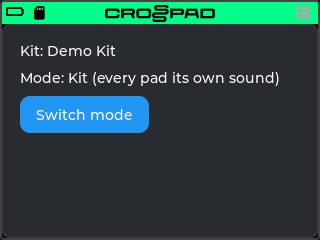
The picture is the simulator with a test kit named Demo Kit loaded.
The code is in the example folder (examples/03-play-sample in crosspad-examples, which is not public yet): src/PlaySampleApp.cpp (the screen and the registration), src/PlaySamplePadLogic.cpp with its header (the pads), and include/example-play-sample/PlayModel.hpp (the mode, the pitch and voice key per pad, and who plays a press: plain C++ with a host test in tests/, run as in Test it on your computer).
Run it on the simulator
Section titled “Run it on the simulator”Copy the example into your simulator checkout. Run this from your crosspad-examples clone.
Terminal window python3 tools/install.py --target pc ~/crosspad-pc play-sampleTerminal window python tools\install.py --target pc C:\crosspad-pc play-sampleYou should see:
installed example-play-sample -> …/src/apps/crosspad-example-play-sample.Rebuild the simulator. The build looks for apps while CMake configures, so configure again before you build.
cmake -B buildreuses the settings of your first build, which CMake keeps inbuild/.Terminal window cd ~/crosspad-pccmake -B buildcmake --build buildIn the x64 Native Tools Command Prompt, as in step 4 of the Windows tab of PC simulator:
Terminal window cd /d C:\crosspad-pccmake -B buildcmake --build buildYou should see: a line starting
-- App submodule: crosspad-example-play-samplewhile CMake configures, and a build that ends withouterror.If not: a new app does not show up.
-
Make a folder to act as the simulator’s SD card, with a kit in it. Inside the folder, create
crosspad/kits/and copy one kit folder there: a folder with itskit.jsonand its WAV files, for example one from your CrossPad’s card (Your sounds describes a kit). Copy the kit before the next step: the simulator looks for kits when the card is mounted.No CrossPad, so no kit? Make one. Save this as
make_kit.pyand run it withpython3 make_kit.py(Windows:python make_kit.py). It writes a card foldersim-cardin the current folder, holding a kit named Tones: sixteen short tones, pad 1 lowest and each pad one semitone higher, as 16-bit, 44100 Hz WAV files next to akit.jsonthat names one file per pad.import json, math, pathlib, struct, wavekit = pathlib.Path("sim-card/crosspad/kits/TONES")kit.mkdir(parents=True, exist_ok=True)pads = []for pad in range(16):name = f"tone{pad + 1:02}.wav"hz = 220 * 2 ** (pad / 12) # pad 1 is A3, each pad one semitone higherframes = [int(9000 * math.sin(2 * math.pi * hz * n / 44100) * (1 - n / 22050)) for n in range(22050)]with wave.open(str(kit / name), "wb") as w:w.setnchannels(1)w.setsampwidth(2)w.setframerate(44100)w.writeframes(struct.pack(f"<{len(frames)}h", *frames))pads.append({"samples": [name]})(kit / "kit.json").write_text(json.dumps({"name": "Tones", "pads": pads}, indent=1))print("made", kit.resolve())You should see: a line that starts with
madeand ends inTONES. The card folder for step 5 issim-card. Start the simulator, from the same folder.
Terminal window ./bin/CrossPadTerminal window bin\CrossPad.exeYou should see: the CrossPad window with the launcher, and a tile labelled PlaySample among the apps.
-
Mount the card: click the SD slot at the bottom left of the simulated device, under the pads, and choose the folder from step 3 in the folder dialog that opens. The simulator remembers it for the next start. If a folder name already shows under the slot, a card from an earlier session is mounted: a click unmounts it, and a second click opens the dialog.
You should see: the folder’s name under the slot, and
[SDCard] Mounted by user: <folder>and[KitLoader] Discovered N kits under <folder>in the terminal, N being the number of kits you copied.No folder dialog? The dialog comes from Windows itself, and on Linux from
zenityorkdialog(sudo apt-get install zenityadds one). On Linux without either, the click prints[SDCard] Folder picker: cancelled, or neither 'zenity' nor 'kdialog' runs here; …. To set the folder without a dialog, on any system, quit the simulator and opendevice_preferences.jsonin its profile folder,~/.crosspad/(the terminal prints it at start as[KVStore] Profile dir: …); create the file if it is missing. Set"sdcard_path"to the full path of the folder from step 3, for example{ "sdcard_path": "/full/path/to/your-card-folder" }, and start the simulator again. It prints[SDCard] Auto-mounted from saved prefs: <folder>and mounts the card. -
Load the kit with the simulated encoder, not the mouse: the mouse wheel turns it, the middle mouse button presses it. Press Escape (the launcher’s choice goes back to its first tile,
KitSelector), then press the middle button: the KITS list opens. Roll the wheel down until your kit’s row is chosen (with one kit it already is) and press the middle button again. The selector closes by itself once the kit has loaded; if it does not, press Escape to go back to the launcher. Click the PlaySample tile.
You should see:
Kit: <your kit's name>andMode: Kit (every pad its own sound). Without a kit, the first line readsNo kit loaded. MODE, then pad 13 (Kits).: on the simulator, load one as in step 6.-
Click a few pads in the simulator window.
You should see: each pad plays its own sample from the kit, through your computer’s sound output, as it does in the Sampler.
-
Click Switch mode, then click the pads again.
You should see: the label reads
Mode: Pitched (pad 1's sound on every pad), and every pad plays pad 1’s sample. Click Switch mode again for Kit mode. -
Close the app with a short press of the power button (Space or Ctrl in the simulator).
In the simulator, Pitched mode plays pad 1’s sample from every pad; the sixteen pitches are heard on the CrossPad. Simulator vs CrossPad lists what differs.
Run it on the CrossPad
Section titled “Run it on the CrossPad”Step 1 runs from your crosspad-examples clone. The steps after it run in the firmware project (~/CrossPad, Windows C:\CrossPad\firmware) in a terminal with ESP-IDF loaded, as in 2. Build the firmware. Used the one-line installer? Use crosspad-idf in place of idf.py.
Copy the example into the firmware project.
Terminal window python3 tools/install.py --target idf ~/CrossPad play-sampleTerminal window python tools\install.py --target idf C:\CrossPad\firmware play-sampleYou should see:
installed example-play-sample -> …/components/crosspad-example-play-sample.Clean the build folder and build. The firmware looks for apps only when it configures from scratch, hence the
fullclean. The lines are for a v2 board (PCB r20).Terminal window cd ~/CrossPadidf.py -B build_v2 fullcleanidf.py -B build_v2 -DSDKCONFIG=sdkconfig.v2 buildTerminal window cd C:\CrossPad\firmwareidf.py -B build_v2 fullcleanidf.py -B build_v2 "-DSDKCONFIG=sdkconfig.v2" buildFor a v1 board (PCB r16 / r19), use
build_v1in both commands andsdkconfig.v1in the second.You should see:
Generated app_registry_init.cpp with N apps: …;PlaySample;…while CMake configures, andProject build complete. To flash, run:at the end.If not: build stops before Project build complete. If the build completes but
PlaySampleis not in the list: a new app does not show up.Flash the firmware, then the assets, which hold the app's icon and go to the board separately. Answer the board as in 3. Flash the board: Allow, then Update, then leave it alone for 10 seconds.
Terminal window python3 tools/ota_flash.pypython3 tools/fs_transfer.py assetsTerminal window python tools\ota_flash.pypython tools\fs_transfer.py assetsYou should see:
OTA complete!from the first command andAssets written and verified. The device is restarting.from the second.If not: OTA flash cannot find the board, or OTA times out waiting for confirmation.
-
Load a kit, then go to the Sampler. Kits live on the SD card in
crosspad/kits/(Your sounds). On the MODE map, hit pad 13 (Kits, the kit browser) and choose one. Then tap MODE and hit pad 1 to open the Sampler.You should see: the Sampler, with the pads glowing in the kit’s colours; hitting one plays its sound.
Open the app. On the board, hit pad 1 on the MODE map to open the Sampler. Then, with the board on USB, start the app with the crosspad-hil command-line tool, from the venv you made in 1. Set up the toolchain. Used the one-line installer? Skip the first line:
crosspad-hilalready works.Terminal window . ~/CrossPad/.venv/bin/activatecrosspad-hil app start PlaySampleTerminal window C:\CrossPad\firmware\.venv\Scripts\Activate.ps1crosspad-hil app start PlaySampleYou should see:
running=PlaySamplein the terminal.If not: the command needs the board in MIDI + Serial mode: run
crosspad-hil usb-mode set default, press Allow on the board, and start the app again.unknown app: the firmware on the board has no app of that name;crosspad-hil app listlists the ones it has, and step 2's configure line shows whether the build found it. No board found: OTA flash cannot find the board.You should see:
Kit: <the kit's name>,Mode: Kit (every pad its own sound)and the Switch mode button. The pads keep the kit’s colours and play the kit as they do in the Sampler.-
Tap Switch mode (or turn the encoder to it and press), then hit pads 1, 13 and 16.
You should see:
Mode: Pitched (pad 1's sound on every pad), and the pad you hit lights while you hold it. Each hit plays pad 1’s sample, higher the further the pad is from pad 1: pad 13 sounds an octave above pad 1, pad 16 fifteen semitones above it. How it works says what the app asks the engine for and how the firmware passes it on. -
Close the app with a short press of the power button.
You should see: the MODE map again, and the pads play the kit as before. The next visit starts in Kit mode.
Test it on your computer
Section titled “Test it on your computer”PlayModel.hpp (the pitch, the voice key and who plays a press) has a host test, tests/test_play_sample.cpp: plain C++ and Catch2, no board and no LVGL.
The test build needs a crosspad-core checkout: your simulator clone has one in lib/crosspad-core. The first configure downloads Catch2. Run it from your crosspad-examples clone.
cmake -S tests -B tests/build -G Ninja -DCROSSPAD_CORE_DIR="$(cd ~/crosspad-pc/lib/crosspad-core && pwd)"cmake --build tests/buildctest --test-dir tests/build -R play-sample --output-on-failureIn the x64 Native Tools Command Prompt, after cd /d to your crosspad-examples folder:
cmake -S tests -B tests\build -G Ninja -DCROSSPAD_CORE_DIR=C:\crosspad-pc\lib\crosspad-corecmake --build tests\buildctest --test-dir tests\build -R play-sample --output-on-failureYou should see: 100% tests passed, 0 tests failed out of 3. The build compiles the tests of every example in the clone; -R play-sample runs only this recipe's.
Then break it on purpose, one change at a time, and put it back:
- Make
keyForreturn0xFF(kSamplePlaybackOwnKey, the pad’s own key). The testvoice keys never collide with pad indexesfails, and on the board each pitched hit cuts the one before. - Make
kitPlaysreturnmode == Mode::Kitonly. The testthe loop always plays the kitfails, and in Pitched mode a recorded pattern would play back as pad 1’s sample at sixteen pitches.
How it works
Section titled “How it works”The app is two halves that share one object. The screen (PlaySampleApp.cpp) runs on the LVGL task and only sets the mode. The pad logic (PlaySamplePadLogic.cpp) runs on the pad tasks and decides, press by press, who plays it: the Sampler’s pad logic or the app.
The state
Section titled “The state”std::shared_ptr<PlaySamplePadLogic> s_logic; // kept for the life of the program (see create)lv_obj_t* s_mode = nullptr; // "Mode: Kit ..." / "Mode: Pitched ..."lv_group_t* s_group = nullptr; // what the encoder walksSource: examples/03-play-sample/src/PlaySampleApp.cpp, lines 25–27 (repository opens soon)
s_logic is the one file-scope variable that create does not reset. Create makes the pad logic on the first visit, registers it with registerPadLogic under "PlaySample", and keeps it until power-off. The registration line at the end of the file, REGISTER_APP_PL, names that same string as its tenth argument, so the framework hands the pads to this logic each time the app opens and takes them back when it closes. Create resets s_mode and s_group and sets the mode to Kit, so every visit starts in Kit mode. Switch mode runs on the LVGL task and only stores the new mode in the logic’s atomic mode_; the pad callbacks read it from their own tasks. Nothing on the screen follows the pads, so no pad callback needs to reach LVGL.
The current kit
Section titled “The current kit”const char* current_kit_name(){ crosspad::IKitManager* kits = crosspad::getKitManager(); // null on a platform without kits crosspad::KitInfo* kit = kits ? kits->getCurrentKit() : nullptr; return kit ? kit->name.c_str() : nullptr;}Source: examples/03-play-sample/src/PlaySampleApp.cpp, lines 31–36 (repository opens soon)
Two pointers can be null here, and the code checks both. getKitManager() is null on a platform without a kit system, and getCurrentKit() is null while no kit is loaded. Create calls this once and writes Kit: <name>, or the “No kit loaded” hint when it gets null. The label is not refreshed while the app is open.
Layering over the base pad logic
Section titled “Layering over the base pad logic”void PlaySamplePadLogic::onActivate(crosspad::PadManager& pm){ pitchedHeld_.store(0); // a new visit starts with no pad held // The base pad logic is what plays the kit when no app owns the pads. auto base = pm.getPadLogic(pm.getBasePadLogic()); crosspad::IPadLogicHandler* b = (base.get() == this) ? nullptr : base.get(); if (b) b->onActivate(pm); base_.store(b);}
void PlaySamplePadLogic::onDeactivate(crosspad::PadManager& pm){ flushPitched(pm); // no pitched note outlives the app if (auto* b = base_.exchange(nullptr)) b->onDeactivate(pm);}Source: examples/03-play-sample/src/PlaySamplePadLogic.cpp, lines 9–23 (repository opens soon)
While an app’s pad logic has the pads, PadManager does nothing of its own for a press or a release: no light, no MIDI, no event. To keep the kit sounding, the logic calls the pad logic that plays it. On the firmware and on the simulator that is the Sampler’s, registered as the base pad logic, the one that has the pads when no app does. getBasePadLogic() returns its name and getPadLogic() the handler.
onActivate runs when the framework hands the pads to this logic. The logic passes it on to the Sampler’s logic, which does what it does whenever it gets the pads (it subscribes to its events and paints the kit’s colours). onDeactivate ends this app’s own notes first and then passes the call on. The base.get() == this check keeps the logic from calling itself if it ever were the base. base_ is an atomic pointer because the pad tasks read it while these two functions write it, and pitchedHeld_ is cleared on activate so a new visit never inherits a held pad from the last one.
The logic calls the Sampler’s handler directly. It never calls setActivePadLogic or pushPadLogic (PadManager): with REGISTER_APP_PL the framework pushes this logic when the app opens and pops it when the app closes, and the switch belongs to it alone (How an app works).
Ending a pitched note
Section titled “Ending a pitched note”// One place ends a pitched note: the release and the app closing both use it.// The off reaches the engine; what it ends depends on the pad's mode in the kit.void PlaySamplePadLogic::endPitched(crosspad::PadManager& pm, uint8_t pad){ crosspad::getEventBus().postSamplePlayback(kSourcePad, /*wavIdx=*/0, /*isOn=*/false, crosspad::EventSource::App, 127, transposeFor(pad), keyFor(pad)); pm.notifyNoteOff(pad, /*fromSampler=*/true);}
// A note still held when the app closes would never get its off.void PlaySamplePadLogic::flushPitched(crosspad::PadManager& pm){ const uint16_t held = pitchedHeld_.exchange(0); for (uint8_t p = 0; p < 16; ++p) { if (held & (1u << p)) endPitched(pm, p); }}Source: examples/03-play-sample/src/PlaySamplePadLogic.cpp, lines 27–44 (repository opens soon)
A pitched note ends in one place, endPitched, whether the finger lets go or the app closes. The note-off has to carry the same pad, transpose and key as the note-on, because the engine finds the voice to release by pad and key; one function cannot get that out of step. notifyNoteOff turns off the light that the press turned on.
flushPitched takes the whole held mask with one exchange(0). A release running at the same moment on a pad task clears its bit with fetch_and on the same atomic, so each held note ends exactly once: by the release or by the flush, never by both.
What a note-off does depends on the pad’s playback mode in the kit. On the CrossPad, a note-off ends a pad in Hold mode; one-shot and loop pads play as the kit sets them. The table in What reaches the engine lists this per kit type. The app sends the off in every case, so a note that does listen to it always gets one.
Who plays a press
Section titled “Who plays a press”void PlaySamplePadLogic::onPadPress(crosspad::PadManager& pm, uint8_t pad, uint8_t velocity){ if (pad >= 16) return; if (kitPlays(mode_.load(), pm.pressSource(pad))) { if (auto* b = base_.load()) b->onPadPress(pm, pad, velocity); return; } crosspad::getEventBus().postSamplePlayback(kSourcePad, /*wavIdx=*/0, /*isOn=*/true, crosspad::EventSource::App, velocity ? velocity : 1, transposeFor(pad), keyFor(pad)); pm.notifyNoteOn(pad, velocity, /*fromSampler=*/true); // the pad lights as on the Sampler pitchedHeld_.fetch_or(static_cast<uint16_t>(1u << pad));}
void PlaySamplePadLogic::onPadRelease(crosspad::PadManager& pm, uint8_t pad){ if (pad >= 16) return; // The loop's release always belongs to the kit, even while a finger holds // this pad in Pitched mode: the manager stores a release's source before it // calls us, so pressSource() says who let go. if (pm.pressSource(pad) == crosspad::EventSource::SequencerCallback) { if (auto* b = base_.load()) b->onPadRelease(pm, pad); return; } // A finger's release goes to whoever played that press: the held bit says // whether it was ours (pitched) or the kit's, even if the mode changed since. const uint16_t bit = static_cast<uint16_t>(1u << pad); if (pitchedHeld_.fetch_and(static_cast<uint16_t>(~bit)) & bit) { endPitched(pm, pad); } else if (auto* b = base_.load()) { b->onPadRelease(pm, pad); }}Source: examples/03-play-sample/src/PlaySamplePadLogic.cpp, lines 48–80 (repository opens soon)
The press. kitPlays() (in PlayModel.hpp) answers “does the Sampler play this?”: yes in Kit mode, and yes, in either mode, for a press that a running loop plays. pressSource(pad) tells the two apart; it returns EventSource::SequencerCallback (EventSource) for a loop’s press. Without that check, Pitched mode would replay a recorded pattern as pad 1’s sample at sixteen pitches.
In Pitched mode the app plays the note itself with getEventBus().postSamplePlayback(...), the same request the Sampler’s pad logic posts for a hit, with three differences (SamplePlaybackData describes each field):
- The pad is always
kSourcePad, index 0 (pad 1), whichever pad was hit. transposeistransposeFor(pad), the pad index: 0 semitones for pad 1, 15 for pad 16, added to pad 1’s own pitch.keyiskeyFor(pad), 16 plus the pad index. The key says which note this is when it is not the pad itself. The board’s engine restarts a voice struck again with the same key, and releases by pad and key. Without a key per pad, two pads playing pad 1’s sample would be one note: the second hit would cut the first, and the first release would end both. Keys from 16 up stay clear of 0 to 15, the keys of the kit’s own notes, so a pitched note never cuts pad 1’s kit note either. One exception: if the kit puts pad 1 in a choke group (a hi-hat, say), the board’s engine cuts every voice of that group whatever its key, so each hit of pad 1’s sample cuts the last one, as it does in the Sampler. That is the kit, not the keys.
A velocity of 0 is sent as 1, so a press with no force still sounds: to a sample engine, a note-on with velocity 0 means note-off. Then notifyNoteOn lights the pad you hit, since PadManager lights nothing for an app’s logic, and the pad’s bit goes into pitchedHeld_.
The release. A release is routed by who played the press, not by the mode now. PadManager stores each release’s source before it calls the logic, so pressSource() inside onPadRelease names who let go. A loop’s release goes to the Sampler first, even while a finger holds the same pad in Pitched mode. For a finger, the held bit decides: fetch_and clears it and returns the old mask in one step, so a pad pressed in Pitched mode and released after a switch to Kit still ends its pitched note, and a kit note released after a switch to Pitched still reaches the Sampler.
The routing at a glance
Section titled “The routing at a glance”| Kit mode | Pitched mode | |
|---|---|---|
| Finger press | Sampler | the app: pad 1’s sample, pitched |
| Loop press | Sampler | Sampler |
| Loop release | Sampler | Sampler |
| Finger release, pad’s held bit set | the app ends its pitched note | the app ends its pitched note |
| Finger release, held bit clear | Sampler | Sampler |
The release rows hold in either mode because the held bit, not the mode, says who played the press. The loop rows follow from the code: the firmware and the simulator both report a loop’s press and release as SequencerCallback.
Pressure goes straight to the Sampler’s onPadPressure, in both modes, and the Sampler decides what it does to the sound.
What reaches the engine
Section titled “What reaches the engine”On the board, the firmware’s bridge from the event bus hands transpose and key to its sample engine as they are; with a pitched kit loaded it adds transpose to the note the kit gives pad 1. Pad 13 plays an octave above pad 1. For the simulator, see Simulator vs CrossPad.
| Kit type | transpose | key | What a note-off stops |
|---|---|---|---|
| A sample kit (the default engine) | semitones up | used: restarts and releases by pad and key | Hold pads only |
| A pitched kit | added to the note the kit gives pad 1 | not used: the off goes by note | the note, whatever the pad’s mode |
Pitfalls
Section titled “Pitfalls”The rules this example follows, and what happens without them.
- Route a release by who played the press, never by the current mode. Decide by the mode, and switching modes while a pad is held sends the release to the wrong player: a pitched note in Hold mode keeps sounding, and the Sampler gets a release for a press it never saw.
- Give the loop’s release to the kit first. Check
pressSource()before the held bit. Otherwise a loop releasing a pad that a finger holds in Pitched mode ends the finger’s pitched note, and the loop’s kit note never gets its release. - Give every pitched voice its own key. With the pad’s own key (the default,
kSamplePlaybackOwnKey), every pitched note is pad 1’s note: each hit cuts the one before, and one release ends them all. - End your notes in
onDeactivate. A pitched pad held while the app closes never gets its release: the release goes to whoever has the pads by then. A Hold-mode note then sounds until something stops the pad. - End a note in one place. Two copies of the note-off drift apart, and an off with a different
transposeorkeythan its note-on releases nothing. - Reset pad logic state in
onActivate. The logic outlives the screen. A held bit left from the last visit makes the first finger release on that pad end a pitched note that is not there, instead of reaching the Sampler. - Call the Sampler’s handler, never switch to it.
setActivePadLogic("Sampler")orpushPadLogic("Sampler")takes the pads away from your own logic, so Pitched mode stops doing anything, and the framework’s push and pop no longer match what is active. Called from insideonActivateoronDeactivate, either one re-enters PadManager in the middle of a switch, which its header warns against. Call the handler’s methods, as the example does. - Check the kit pointers.
getKitManager()andgetCurrentKit()return null where there is no kit system or no kit; check both before you read them.
The kit name is read once, in create: load another kit while the app is open, and the label shows it on the next visit.
- MIDI out: the next recipe, the pads as notes, control change and pitch bend, with no hanging notes.
- How an app works: the lifecycle and the threading rules this example follows.
- PadManager and IEventBus in the App API.
- The example’s folder (
examples/03-play-samplein crosspad-examples, which is not public yet), with its host test.