Motion and vibration
SDK 1.xWritten for core 1.53+ and gui 1.23+.
Goal: An app that counts taps on the CrossPad and answers each one with a vibration, and that turns the board’s tilt into MIDI CC 74, and shows whether a motion sensor is present.
You need: Start here done, with the PC simulator built or a board you have flashed once. The crosspad-examples clone. Hello screen and MIDI out first, if you have not built an app yet. A MIDI monitor on your computer for the tilt CC, set up as in MIDI out.
What you will build
Section titled “What you will build”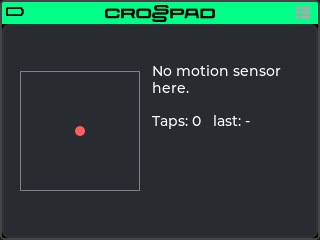
A screen with a spirit level (a box with a dot that follows the board’s tilt), a line that says whether there is a motion sensor or which CC value went out last, and a tap counter with the last gesture’s name. The app registers no pad logic, so while it is open the pads keep playing the kit. The code is in examples/09-motion in crosspad-examples, which is not public yet.
Run it on the simulator
Section titled “Run it on the simulator”Copy the example into your simulator checkout. Run this from your crosspad-examples clone.
Terminal window python3 tools/install.py --target pc ~/crosspad-pc motionTerminal window python tools\install.py --target pc C:\crosspad-pc motionYou should see:
installed example-motion -> …/src/apps/crosspad-example-motion.Rebuild the simulator. The build looks for apps while CMake configures, so configure again before you build.
cmake -B buildreuses the settings of your first build, which CMake keeps inbuild/.Terminal window cd ~/crosspad-pccmake -B buildcmake --build buildIn the x64 Native Tools Command Prompt, as in step 4 of the Windows tab of PC simulator:
Terminal window cd /d C:\crosspad-pccmake -B buildcmake --build buildYou should see: a line starting
-- App submodule: crosspad-example-motionwhile CMake configures, and a build that ends withouterror.If not: a new app does not show up.
Start the simulator, from the same folder.
Terminal window ./bin/CrossPadTerminal window bin\CrossPad.exeYou should see: the CrossPad window with the launcher, and a tile labelled Motion among the apps.
Click the Motion tile.
You should see: the screen in the picture above: the box with the dot in its middle, No motion sensor here. and Taps: 0 last: -. Nothing on it changes: the simulator has no motion sensor (Simulator vs CrossPad). Close the app with the power button (Space or Ctrl).
Run it on the CrossPad
Section titled “Run it on the CrossPad”Step 1 runs from your crosspad-examples clone. The steps after it run in the firmware project (~/CrossPad, Windows C:\CrossPad\firmware) in a terminal with ESP-IDF loaded, as in 2. Build the firmware. Used the one-line installer? Use crosspad-idf in place of idf.py.
Copy the example into the firmware project.
Terminal window python3 tools/install.py --target idf ~/CrossPad motionTerminal window python tools\install.py --target idf C:\CrossPad\firmware motionYou should see:
installed example-motion -> …/components/crosspad-example-motion.Clean the build folder and build. The firmware looks for apps only when it configures from scratch, hence the
fullclean. The lines are for a v2 board (PCB r20).Terminal window cd ~/CrossPadidf.py -B build_v2 fullcleanidf.py -B build_v2 -DSDKCONFIG=sdkconfig.v2 buildTerminal window cd C:\CrossPad\firmwareidf.py -B build_v2 fullcleanidf.py -B build_v2 "-DSDKCONFIG=sdkconfig.v2" buildFor a v1 board (PCB r16 / r19), use
build_v1in both commands andsdkconfig.v1in the second.You should see:
Generated app_registry_init.cpp with N apps: …;Motion;…while CMake configures, andProject build complete. To flash, run:at the end.If not: build stops before Project build complete. If the build completes but
Motionis not in the list: a new app does not show up.Flash the firmware, then the assets, which hold the app's icon and go to the board separately. Answer the board as in 3. Flash the board: Allow, then Update, then leave it alone for 10 seconds.
Terminal window python3 tools/ota_flash.pypython3 tools/fs_transfer.py assetsTerminal window python tools\ota_flash.pypython tools\fs_transfer.py assetsYou should see:
OTA complete!from the first command andAssets written and verified. The device is restarting.from the second.If not: OTA flash cannot find the board, or OTA times out waiting for confirmation.
Open the app. On the board, hit pad 1 on the MODE map to open the Sampler. Then, with the board on USB, start the app with the crosspad-hil command-line tool, from the venv you made in 1. Set up the toolchain. Used the one-line installer? Skip the first line:
crosspad-hilalready works.Terminal window . ~/CrossPad/.venv/bin/activatecrosspad-hil app start MotionTerminal window C:\CrossPad\firmware\.venv\Scripts\Activate.ps1crosspad-hil app start MotionYou should see:
running=Motionin the terminal.If not: the command needs the board in MIDI + Serial mode: run
crosspad-hil usb-mode set default, press Allow on the board, and start the app again.unknown app: the firmware on the board has no app of that name;crosspad-hil app listlists the ones it has, and step 2's configure line shows whether the build found it. No board found: OTA flash cannot find the board.You should see: the box with its dot under the transport bar, the line CC 74 = …, channel 1 and Taps: 0 last: -.
-
Tilt the board to the left and to the right.
You should see: the dot follows the tilt, and the line reads CC 74 = and the value that went out, from 0 to 127. Your MIDI monitor shows control change 74 on channel 1.
-
Tap the case of the board once with a finger.
You should see: Taps: 1 last: tap, and a short buzz from the haptic motor.
-
Close the app with a short press of the power button.
You should see: the MODE map again.
Test it on your computer
Section titled “Test it on your computer”MotionModel.hpp (tilt to a CC value, and when a new value is worth sending) has a host test, tests/test_motion.cpp: plain C++ and Catch2, no board and no LVGL.
The test build needs a crosspad-core checkout: your simulator clone has one in lib/crosspad-core. The first configure downloads Catch2. Run it from your crosspad-examples clone.
cmake -S tests -B tests/build -G Ninja -DCROSSPAD_CORE_DIR="$(cd ~/crosspad-pc/lib/crosspad-core && pwd)"cmake --build tests/buildctest --test-dir tests/build -R motion --output-on-failureIn the x64 Native Tools Command Prompt, after cd /d to your crosspad-examples folder:
cmake -S tests -B tests\build -G Ninja -DCROSSPAD_CORE_DIR=C:\crosspad-pc\lib\crosspad-corecmake --build tests\buildctest --test-dir tests\build -R motion --output-on-failureYou should see: 100% tests passed, 0 tests failed out of 5. The build compiles the tests of every example in the clone; -R motion runs only this recipe's.
How it works
Section titled “How it works”The app is one source file, src/MotionApp.cpp, and a header with the tilt-to-CC arithmetic, include/example-motion/MotionModel.hpp, which the host test covers.
std::atomic<int> s_taps{0}; // taps and double taps, counted on the event taskstd::atomic<int> s_gesture{-1}; // the last MotionGesture seen, -1 before anycrosspad::SubscriptionHandle s_sub = nullptr; // our MotionGesture subscriptionlv_timer_t* s_timer = nullptr; // polls the sensor and paints the labelslv_obj_t* s_dot = nullptr; // the spirit level's dotlv_obj_t* s_cc = nullptr;lv_obj_t* s_info = nullptr;int s_lastCc = -1; // the last CC value sent, -1 before the firstint s_shownTaps = -1; // what s_info shows now, to repaint on change onlyint s_shownGesture = -2;int s_shownSensor = -1; // -1 unknown, 0 no sensor, 1 sensorSource: examples/09-motion/src/MotionApp.cpp, lines 27–37 (repository opens soon)
Two values cross threads: the event task writes the tap count and the last gesture, the LVGL task reads them. Those two are std::atomic; everything else is touched only on the LVGL task (create, the timer, destroy) and stays plain. The s_shown… values start at numbers no real value has, so the first timer tick paints every line. Create resets every one of these first: file-scope variables keep their values from the last visit (What outlives the screen). Without the resets the next visit would open with the old tap count, and a stale s_shownSensor would skip the first paint of the sensor line, and with it the s_lastCc = -1 that lets the first CC out.
Names and the spirit level
Section titled “Names and the spirit level”const char* gesture_name(int g){ switch (static_cast<crosspad::MotionGesture>(g)) { case crosspad::MotionGesture::SingleTap: return "tap"; case crosspad::MotionGesture::DoubleTap: return "double tap"; case crosspad::MotionGesture::FreeFall: return "free fall"; case crosspad::MotionGesture::WakeUp: return "wake up"; case crosspad::MotionGesture::Orientation: return "turned"; case crosspad::MotionGesture::Still: return "still"; } return "-";}
// The spirit level: a square box with a 1 px border, a dot inside it. The dot's// top-left corner moves kHalf either way from the middle, so it never leaves the box.constexpr int32_t kBox = 120; // box side, border includedconstexpr int32_t kDot = 10; // dot sideconstexpr int32_t kHalf = (kBox - 2 - kDot) / 2; // 54: travel from the middleconstexpr float kMaxDeg = 45.0f; // the angle that reaches the edgeconstexpr int32_t kGap = 12; // between the box and the text beside itconstexpr int32_t kCcY = 20; // the CC label's top, in the text columnconstexpr int32_t kInfoY = 70; // the tap label's top, below a wrapped CC label
// Keeps a tilt angle inside the spirit level.float edge(float deg) { return deg < -kMaxDeg ? -kMaxDeg : (deg > kMaxDeg ? kMaxDeg : deg); }
// Where the dot's top-left corner goes for a tilt in degrees.int32_t dot_pos(float deg) { return kHalf + static_cast<int32_t>(edge(deg) * kHalf / kMaxDeg); }Source: examples/09-motion/src/MotionApp.cpp, lines 41–68 (repository opens soon)
gesture_name covers all six MotionGesture values. A platform whose sensor knows fewer of them never posts the rest, so an app handles what arrives and assumes nothing else. The spirit level’s numbers are named so the dot’s travel follows from the box: kHalf takes off the 1 px border on both sides and the dot’s own size, and edge() holds any angle past 45° at the wall, so the dot never leaves the box. Tilt your board to see which way the dot moves for which tilt (ImuData lists the fields). The code takes a level board as 0°, as the firmware’s own Motion MIDI does. A good exercise: keep the first reading after create as “level” and map the tilt relative to it, so the app follows however the board lies.
Gestures, on the event task
Section titled “Gestures, on the event task”// Runs on the event task, so LVGL is off limits: the counts go through atomics.// vibrate() only queues the preset for the haptics task (it does not wait for// the motor), so it can be called from here.void on_gesture(const void* data, crosspad::EventType, void*){ const auto* d = static_cast<const crosspad::MotionGestureData*>(data); s_gesture.store(static_cast<int>(d->gesture)); if (d->gesture != crosspad::MotionGesture::SingleTap && d->gesture != crosspad::MotionGesture::DoubleTap) return; s_taps.fetch_add(1); auto& vib = crosspad::getVibration(); if (vib.isAvailable()) { vib.vibrate(d->gesture == crosspad::MotionGesture::SingleTap ? crosspad::VibrationPreset::ImuTap : crosspad::VibrationPreset::ImuDoubleTap); }}Source: examples/09-motion/src/MotionApp.cpp, lines 72–88 (repository opens soon)
Event subscribers run on the event bus’s own task (crosspad_events, core 1), never on the LVGL task, so on_gesture touches no widget: it stores into the two atomics, and the timer paints. It copies the gesture out at once, because data is valid only while the callback runs (IEventBus). getVibration().vibrate() is safe here because it waits for nothing: it puts the VibrationPreset on the haptics task’s queue with no timeout, and if that queue is full the preset is dropped. The isAvailable() check comes first because the motor is an optional part: on the board it is there only when the DRV2605 started, and the simulator has none.
Subscribing
Section titled “Subscribing”s_sub = crosspad::getEventBus().subscribe(crosspad::EventType::MotionGesture, on_gesture, nullptr);Source: examples/09-motion/src/MotionApp.cpp, lines 177–178 (repository opens soon)
Create subscribes to EventType::MotionGesture (EventTypes) with subscribe and keeps the handle, because destroy needs it to unsubscribe. Right after this line create starts the timer: lv_timer_create(tick, 50, nullptr), a tick every 50 ms on the LVGL task.
Polling the sensor, on the LVGL task
Section titled “Polling the sensor, on the LVGL task”void tick(lv_timer_t*){ const int taps = s_taps.load(); const int gesture = s_gesture.load(); if (taps != s_shownTaps || gesture != s_shownGesture) { s_shownTaps = taps; s_shownGesture = gesture; lv_label_set_text_fmt(s_info, "Taps: %d last: %s", taps, gesture_name(gesture)); }
auto& imu = crosspad::getImu(); const bool sensor = imu.isAvailable(); // the simulator has no motion sensor if (s_shownSensor != (sensor ? 1 : 0)) { // first tick, or the sensor came or went s_shownSensor = sensor ? 1 : 0; if (sensor) { s_lastCc = -1; // send the current tilt as soon as the sensor is back lv_label_set_text_fmt(s_cc, "Tilt to send CC %u", static_cast<unsigned>(example_motion::kTiltCc)); } else { lv_label_set_text(s_cc, "No motion sensor here."); } } if (!sensor) return; // nothing to read, nothing to send crosspad::ImuData d; if (!imu.getData(d)) return; lv_obj_set_pos(s_dot, dot_pos(d.roll), dot_pos(d.pitch));
const uint8_t cc = example_motion::tiltToCc(d.roll); if (!example_motion::worthSending(s_lastCc, cc)) return; crosspad::getMidiOutput().sendControlChange(example_motion::kTiltCc, cc, 0); // channel 1 s_lastCc = cc; lv_label_set_text_fmt(s_cc, "CC %u = %d, channel 1", static_cast<unsigned>(example_motion::kTiltCc), s_lastCc);}Source: examples/09-motion/src/MotionApp.cpp, lines 92–125 (repository opens soon)
The sensor is read, not subscribed to: getImu().getData(d) returns the latest values the platform’s sensor task cached, it is thread-safe, and a timer on the LVGL task is where the dot can be moved. The tick does three things, each only when something changed:
- The tap line is rewritten only when the count or the gesture moved, not 20 times a second.
- The sensor line asks
isAvailable()on every tick, not once in create, so the screen follows the sensor if it appears or goes away while the app is open. When it comes back,s_lastCc = -1makes the next reading go out at once. With no sensor the tick returns before reading or sending anything. - The CC goes out through
getMidiOutput().sendControlChange(74, value, 0); channels count from 0, so 0 is MIDI channel 1.tiltToCcmaps a roll of −45° to 45° onto 0 to 127 and holds past the ends.worthSendingskips a change of one, because the sensor jitters by one at rest, but always sends 0 and 127 once they are reached: with the “moved by two” rule alone, a slow tilt that moves one step per tick would stop at 126 or 1 and never reach the end. Both are in MotionModel.hpp (examples/09-motion/include/example-motion/MotionModel.hppin crosspad-examples, which is not public yet), with their tests in the example’stests/folder (Test it on your computer).
The firmware already maps tilt to MIDI. Motion MIDI sends roll as CC 74 on channel 1 over ±45° by default (slot 2), the same mapping as this app. It is enough when you only want the CC. Map motion in your own app when the mapping belongs to the app (it changes with the app’s state, or the app shows it, like the spirit level), or when you react to gestures. If you do, turn Motion MIDI off or move one of the two to another CC, so that an open app and Motion MIDI do not both send CC 74 on channel 1.
Destroy
Section titled “Destroy”void Motion_destroy(lv_obj_t* root){ // root is null when the app's screen was already wiped: free what is ours, delete nothing. if (s_timer) { lv_timer_delete(s_timer); s_timer = nullptr; } if (s_sub) { crosspad::getEventBus().unsubscribe(s_sub); s_sub = nullptr; } s_dot = s_cc = s_info = nullptr; if (root) lv_obj_delete_async(root);}Source: examples/09-motion/src/MotionApp.cpp, lines 185–192 (repository opens soon)
The timer goes first, so no tick runs against labels that are about to be deleted. Then the subscription. On the board, unsubscribe waits for a callback that is already running, so once it returns on_gesture is not called again. on_gesture keeps to atomics and the vibration service anyway, which outlive the screen. The root is deleted last, with lv_obj_delete_async, and only when there is one: a destroy can come with a null root when the screen under the app was already wiped (Lifecycle).
Pitfalls
Section titled “Pitfalls”- A widget call in
on_gesture. The event task and the LVGL task run at the same time, and LVGL belongs to the LVGL task. Write an atomic and let the timer paint, or hand the work to the LVGL task withpostToGui, which is allowed here because this is the event task, not a pad callback (Threads). A pad callback uses atomics and a timer instead: never block a pad callback on the LVGL lock. - Waiting in a subscriber. Every subscriber of every app shares the one event task. A callback that blocks (a delay, a lock, a blocking send) holds up all the others; on the board the queue of 64 events fills, and then every task that posts an event waits until there is room, the pad and motion sensor tasks included. Keep subscribers short.
- Deciding “no sensor” once, in create. Decide once, and the screen stays wrong when the sensor comes or goes while the app is open. Ask
isAvailable()where you use the sensor. - Checking a capability flag instead of the service. The
Imuflag (hasCapability) describes the platform, not the parts that answered on this board.getImu().isAvailable()andgetVibration().isAvailable()are the checks that hold (Hardware for apps). - Sending on every tick, or on every change. At 50 ms a tick, sending every reading is 20 messages a second of the same value; sending every change of one floods the port with sensor noise. Send on change, with a step of two, and treat the ends as the exception: without it, a slow sweep stops one short of 0 or 127.
- Forgetting
unsubscribe. The subscription outlives the screen. The vibration then answers taps in every other app, and the next visit subscribes a second time, so each tap counts twice and buzzes twice. - Leaving the statics from the last visit. Without the resets at the top of create, the second visit opens with the last visit’s tap count, and a stale
s_shownSensorands_lastCccan leave the sensor line unpainted and hold back the first CC.
- UI kit: CrossPad’s look, toasts, a confirm dialog, and
postToGuifrom another task. - How an app works: the lifecycle and the thread rules this app follows.
- The API pages for this recipe:
IImu,IVibration,EventData, and Motion and haptics for the parts themselves. - The example’s folder (
examples/09-motionin crosspad-examples, which is not public yet), with its host test.