10-minute quickstart
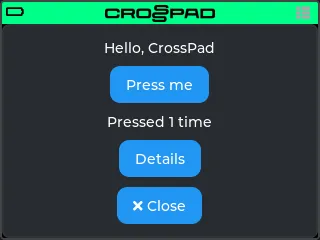
Goal: an example app running in the CrossPad simulator on your computer, with “Pressed 1 time” on its screen.
You need:
- A computer with Linux (Ubuntu or Debian) or Windows 10 or 11, and an internet connection.
- No CrossPad board and no ESP-IDF. The simulator runs the same core, GUI and apps as the board, in a window.
- About 10 minutes on Linux, most of it downloads. On Windows the Visual Studio build tools alone take about 20 minutes.
You build the simulator and start it once, so you know it works. Then you copy the Hello screen example into it, build again and open the app.
These commands are for Ubuntu and Debian.
-
Install the build tools and libraries.
Terminal window sudo apt-get updatesudo apt-get install -y build-essential cmake ninja-build git pkg-config libsdl2-dev libasound2-dev libpulse-dev libdbus-1-devYou should see: apt finishes without an
E:line. -
Download the simulator with its submodules.
Terminal window git clone --recursive https://github.com/CrossPad/crosspad-pc.git ~/crosspad-pccd ~/crosspad-pcgit submodule update --init --recursivegit submodule status | grep -c '^-' || trueYou should see:
0on the last line (no submodule left out).If not: a request for a GitHub login for a submodule such as
crosspad-coreorcrosspad-guimeans it is not open yet (see the note at the top). Anything else: project clone fails -
Build it.
Terminal window cmake -B build -G Ninja -DCMAKE_BUILD_TYPE=Debug && cmake --build buildYou should see:
MIDI support enabled (RtMidi)andAudio support enabled (RtAudio)while CMake configures, then the build ends withouterror:. -
Start it.
Terminal window ./bin/CrossPadYou should see: the CrossPad window with the launcher, and
[Remote] Listening on 127.0.0.1:19840in the terminal. Close the window before the next step.If not: simulator window does not open. In a VM, WSL, a server or a container without sound or Bluetooth services: running without sound or Bluetooth
-
Download the examples next to the simulator, and copy Hello screen into it.
Terminal window cd ~git clone https://github.com/CrossPad/crosspad-examples.gitcd crosspad-examplespython3 tools/install.py --target pc ~/crosspad-pc hello-screenYou should see:
installed example-hello-screen -> …/src/apps/crosspad-example-hello-screen.If not: a request for a GitHub login, or
Repository not found, means the repository is not open yet (see the note at the top).has no src/apps/means the path after--target pcis not your simulator folder. -
Build the simulator again. It looks for apps while CMake configures, so configure again before you build.
cmake -B buildreuses the settings of step 3.Terminal window cd ~/crosspad-pccmake -B buildcmake --build buildYou should see: a line starting
-- App submodule: crosspad-example-hello-screenwhile CMake configures, and a build that ends withouterror.If not: a new app does not show up
-
Start the simulator and click the HelloScreen tile in the launcher.
Terminal window ./bin/CrossPadYou should see: “Hello, CrossPad”, a Press me button, the line “Pressed 0 times”, and the Details and ✕ Close buttons.
If not: no HelloScreen tile: a new app does not show up
-
Click Press me.
You should see: “Pressed 1 time”.
Folder paths must not contain spaces.
-
In PowerShell, install Git, Python and the Visual Studio C++ build tools. The build tools take about 20 minutes, and Windows asks once for permission.
Terminal window winget install --id Git.Git --exact --silent --scope user --accept-package-agreements --accept-source-agreementswinget install --id Python.Python.3.12 --exact --silent --scope user --accept-package-agreements --accept-source-agreementswinget install --id Microsoft.VisualStudio.2022.BuildTools --exact --silent --accept-package-agreements --accept-source-agreements --override "--quiet --wait --norestart --nocache --add Microsoft.VisualStudio.Workload.VCTools --add Microsoft.VisualStudio.Component.VC.CMake.Project --includeRecommended"Close PowerShell and open a new one, so it finds
gitandpython.You should see:
git --versionprintsgit version 2.and a number, andpython --versionprintsPython 3.and a number. -
Install vcpkg into C:\vcpkg and use it to install SDL2.
Terminal window git clone https://github.com/microsoft/vcpkg.git C:\vcpkgC:\vcpkg\bootstrap-vcpkg.bat -disableMetricsC:\vcpkg\vcpkg install sdl2:x64-windowsYou should see: vcpkg ends with
sdl2:x64-windowsinstalled and noerror:line.If not: vcpkg cannot install SDL2
-
Download the simulator with its submodules.
Terminal window git clone --recursive https://github.com/CrossPad/crosspad-pc.git C:\crosspad-pcgit -C C:\crosspad-pc submodule update --init --recursive(git -C C:\crosspad-pc submodule status | Select-String '^-').CountYou should see:
0on the last line (no submodule left out).If not: a request for a GitHub login for a submodule such as
crosspad-coreorcrosspad-guimeans it is not open yet (see the note at the top). Anything else: project clone fails -
Build it. Open x64 Native Tools Command Prompt for VS 2022 from the Start menu (it is a cmd window, not PowerShell) and run:
Terminal window cd /d C:\crosspad-pccmake -B build -G Ninja -DCMAKE_TOOLCHAIN_FILE=C:\vcpkg\scripts\buildsystems\vcpkg.cmake -DCMAKE_BUILD_TYPE=Debugcmake --build buildYou should see:
Copying SDL2.dll to output directory, and the build ends withouterror. -
Start it, in the same window.
Terminal window bin\CrossPad.exeYou should see: the CrossPad window with the launcher, and
[Remote] Listening on 127.0.0.1:19840in the console. Close the window before the next step.If not: simulator window does not open
-
Download the examples next to the simulator, and copy Hello screen into it. Stay in the same Native Tools window.
Terminal window cd /d C:\git clone https://github.com/CrossPad/crosspad-examples.gitcd crosspad-examplespython tools\install.py --target pc C:\crosspad-pc hello-screenYou should see:
installed example-hello-screen -> …\src\apps\crosspad-example-hello-screen.If not: a request for a GitHub login, or
Repository not found, means the repository is not open yet (see the note at the top).has no src/apps/means the path after--target pcis not your simulator folder. -
Build the simulator again. It looks for apps while CMake configures, so configure again before you build.
cmake -B buildreuses the settings of step 4.Terminal window cd /d C:\crosspad-pccmake -B buildcmake --build buildYou should see: a line starting
-- App submodule: crosspad-example-hello-screenwhile CMake configures, and a build that ends withouterror.If not: a new app does not show up
-
Start the simulator and click the HelloScreen tile in the launcher.
Terminal window bin\CrossPad.exeYou should see: “Hello, CrossPad”, a Press me button, the line “Pressed 0 times”, and the Details and ✕ Close buttons.
If not: no HelloScreen tile: a new app does not show up
-
Click Press me.
You should see: “Pressed 1 time”.
What you did
Section titled “What you did”- You built the simulator, the PC version of the CrossPad: the same core, GUI and apps as the board, in a window. The mouse plays it: a left click on the screen is a tap, the wheel turns the encoder and the middle button presses it. The power button is the round button under the encoder, or the Space key.
- You added an app the way every app is added: its folder goes where the build looks for apps (
src/apps/in the simulator), and the next configure finds it.
- Hello screen: the app you ran, line by line, and how to run it on a CrossPad.
- Build an app: six more recipes, from pads and LEDs to MIDI out.
- Start here: the toolchain, the firmware build and the flash, for when you have a board.