Get started
Goal: Charge your CrossPad, switch it on, learn the home screen and play your first kit.
You need: your CrossPad with its microSD card in the slot (the kits are on it), a USB-C cable, and a USB charger or a computer’s USB port.
New to the buttons and sockets? Read CrossPad at a glance first.
Charge it
Section titled “Charge it”The CrossPad charges from its main USB port only. The second USB port does not charge it. See CrossPad at a glance for the two ports.
-
With the CrossPad switched off, plug the USB-C cable into the main USB port and into the charger.
You should see: a screen that says Charging with the battery level in percent. The pads light up dimly to show the charge level. After about 5 seconds the screen fades to black.
The screen says Charged when the battery is full. If it says Not charging, check that the cable is in the main USB port on the top edge, then try another cable or charger. See Problems.
-
To let it charge, do nothing.
You should see: about 10 seconds after you plugged it in, the CrossPad goes dark. It keeps charging.
-
To use it while it charges, wait a moment after plugging in, then press a pad, turn the encoder or press the power button.
You should see: the charge screen closes and the home screen comes up. You can play while it charges.
The battery icon at the top right of the screen shows the charge level. It turns red when the battery runs low.
Switch it on and off
Section titled “Switch it on and off”-
Hold the power button for about 1.5 seconds, then let go. Nothing lights up while you hold.
You should see: the start-up animation: the pads light purple, then lime, and the CrossPad logo shows. Then the home screen, the MODE map (next section).
If nothing happens, you let go too early. Hold a little longer.
-
To switch it off, hold the power button for 4 seconds, then let go.
You should see: the screen and the pads go dark.
Do not keep holding. At 7 seconds on battery, the CrossPad goes into ship mode (see Power).
The home screen: the MODE map
Section titled “The home screen: the MODE map”The home screen is the MODE map: a 4 × 4 grid of cells, one per pad, laid out like the pads. Pad 1 is bottom-left, pad 16 top-right. Each cell shows an app name, a short hint and the pad number. The pads light in the colours of their cells.
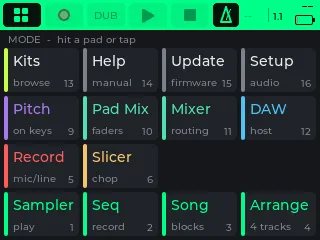
| Pad | Cell | Opens |
|---|---|---|
| 1 | Sampler | Sampler: play a kit on the pads |
| 2 | Seq | Sequencer: record loops |
| 3 | Song | Song: chain scenes into a song |
| 4 | Arrange | Arrange: four tracks of audio and sequences |
| 5 | Record | Recorder: record from the mics, line in, pads or USB |
| 6 | Slicer | Slicer: cut a recording into a kit |
| 7 | (empty) | |
| 8 | (empty) | |
| 10 | Pad Mix | Pad Mixer: one fader per pad |
| 11 | Mixer | Mixer: inputs, outputs and routing |
| 12 | DAW | DAW Control: control your music software |
| 13 | Kits | The kit browser |
| 14 | Help | A short on-device manual |
| 15 | Update | Firmware: install updates |
| 16 | Setup | Settings |
To open an app, hit its pad, tap its cell, or turn the encoder to it and press the encoder.
From inside an app, tap MODE (the button with four small squares, top left of the screen) to bring the MODE map back over the app. Choose another app, or tap MODE again to stay where you are. The pads go back to the app’s own colours when the map closes.
What each app does in detail is on Built-in apps.
Move around
Section titled “Move around”You can get everywhere with the encoder, with touch, or with both.
Encoder
- Turn it to move the highlight from item to item. On a long page, turning also moves the page up and down.
- Press it to choose the highlighted item. On a value (a slider, a number) a press starts changing it: turn to change, press again to finish.
- Turn past the last item on a screen and the highlight reaches the transport bar: the row of buttons at the top of the screen (MODE, REC, PLAY, STOP, the tempo). See Play.
Touch
- Tap anything to choose it.
- Drag a long page up or down with your finger to see the rest.
- Swipe right: back, one step.
- Swipe left: switch to the screen you used before this one. Swipe left again to come back.
- Swipe down from the top edge of the screen: the highlight jumps to the transport bar. The same swipe again jumps back.
Power button
- A short press goes back one step. It stops changing a value, closes an open list or message, and on the next press closes the app (in the Sampler it opens the kit browser instead). On the home screen there is nothing to go back to.
- Hold it for about half a second, then let go: the highlight jumps to the transport bar. Do the same again to jump back.
Play your first beat
Section titled “Play your first beat”After you switch on, the Sampler first asks you to pick a kit.
-
On the MODE map, hit pad 1 (Sampler).
You should see: the kit browser. Along the top: KITS (back), LEGACY and USER. LEGACY is chosen: the kits your CrossPad came with. Below, a list of kits, with a cover picture on the left.
If the MODE map shows Reading SD card…, wait a few seconds and hit pad 1 again. If it shows No SD card - reinsert or restart, push the card into its slot and try again. More help on Problems.
-
Turn the encoder to a kit and press it, or tap the kit.
You should see: the kit loads, and the Sampler opens with the kit’s name at the top. The pads glow faintly in the kit’s colours.
-
Hit the pads.
You should see: each pad lights up fully while it sounds, and you hear the kit from the speakers. Hit harder to play louder.
No sound? Open Settings (pad 16, labelled Setup on the MODE map) → Audio and check Speakers (see Play), then Problems.
To try another kit, tap the kit name at the top of the Sampler, or open Kits (pad 13) from the MODE map. More on Play.
Saving power
Section titled “Saving power”The CrossPad saves power on its own. With the default settings the screen dims after 10 minutes without use, and the CrossPad switches itself off after 30 minutes. It does not switch itself off while it is connected to USB, if you switched it on with the cable already in. You can change both, and the switch-off hold time, in Settings → System: Dim After, Sleep After and Power Long-Press (see Settings).
Ship mode: off for a long time
Section titled “Ship mode: off for a long time”Ship mode disconnects the battery completely, so nothing drains it while the CrossPad is stored or shipped.
-
Unplug the USB cable. Then hold the power button for 7 seconds and let go.
You should see: the screen and the pads go dark. With a cable plugged in, the same hold only switches the CrossPad off.
-
To wake it, plug a charger into the main USB port, or hold the power button for about 1 second.
You should see: the CrossPad starts up by itself: the start-up animation, then the MODE map.
- Play: kits, pressure, lights, volume and the transport bar.
- Your sounds: put your own samples on the CrossPad.