MIDI out
SDK 1.xWritten for core 1.53+ and gui 1.23+.
Goal: an app that owns the pads and sends its own MIDI through getMidiOutput(): a note per pad, pad pressure as control change 1, a pad rocked left or right as pitch bend, and a Note Off for every Note On, even when the app closes with a pad held down.
You need:
- Start here done, or only the PC simulator to begin with.
- The examples cloned, as in Where the examples live.
- Pads and LEDs read: this recipe uses the same pad logic and the same atomic-plus-timer pattern, and explains only what MIDI adds.
- A MIDI monitor on your computer, to watch what the app sends. On Linux the examples bring one (
tools/midi_monitor.py, Python only) for the simulator, andaseqdump(packagealsa-utils) for the CrossPad. On macOS: MIDI Monitor. On Windows: MIDI-OX, plus loopMIDI for the simulator.
What you will build
Section titled “What you will build”An app called MidiOut. While it is open, its pad logic has the pads, so the platform sends no MIDI and plays no sound for them: everything that leaves the main USB port and Bluetooth is the app’s. Pad 1 sends note 36 (C2, the kick in the General MIDI drum map) and each pad up to pad 16 one semitone higher, up to note 51. The screen spells out the last message sent, and two buttons pick the MIDI channel.
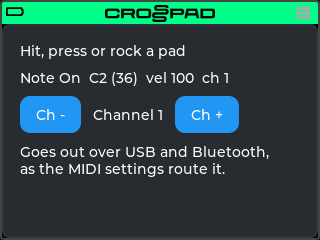
The screenshot shows a hit with velocity 100, as a finger gives on the CrossPad. A mouse click on the simulator always sends velocity 127.
The code is in the example’s folder (examples/05-midi-out in crosspad-examples, which is not public yet): one file for the screen (MidiOutApp.cpp), one for the pad logic (MidiOutPadLogic.cpp), and a small header with the note, pressure and bend maths (MidiModel.hpp) that the host test checks.
Run it on the simulator
Section titled “Run it on the simulator”In the simulator you play notes, change the channel and check that closing the app ends a held note. Control change 1 from pad pressure and pitch bend from a rocked pad come from the CrossPad (Simulator vs CrossPad).
Copy the example into your simulator checkout. Run this from your crosspad-examples clone.
Terminal window python3 tools/install.py --target pc ~/crosspad-pc midi-outTerminal window python tools\install.py --target pc C:\crosspad-pc midi-outYou should see:
installed example-midi-out -> …/src/apps/crosspad-example-midi-out.Rebuild the simulator. The build looks for apps while CMake configures, so configure again before you build.
cmake -B buildreuses the settings of your first build, which CMake keeps inbuild/.Terminal window cd ~/crosspad-pccmake -B buildcmake --build buildIn the x64 Native Tools Command Prompt, as in step 4 of the Windows tab of PC simulator:
Terminal window cd /d C:\crosspad-pccmake -B buildcmake --build buildYou should see: a line starting
-- App submodule: crosspad-example-midi-outwhile CMake configures, and a build that ends withouterror.If not: a new app does not show up.
-
Unplug the CrossPad if it is connected over USB: the simulator connects to it by itself (its port name contains “CrossPad”), ahead of any monitor, and every note you play would reach the board. Then set up the monitor.
In a second terminal, from your
crosspad-examplesclone, start the monitor and leave it running:Terminal window python3 tools/midi_monitor.pyYou should see:
Listening on CrossPad Monitor (<client>:0). Ctrl+C to stop.It creates a port named CrossPad Monitor that only receives. The simulator connects its MIDI OUT to the first port whose name contains “CrossPad”, so it finds this one by itself. Its MIDI IN stays on the first input in the list (
Midi Throughon most systems), which nothing writes to while the notes go to the monitor. Do not watchMidi Throughinstead: without a CrossPad port the simulator connects both its MIDI OUT and its MIDI IN to it. On Linux the simulator picks the ports itself, so leave its jacks as they are.Keep the IAC bus out of this: if you turned the IAC Driver on in Audio MIDI Setup, untick Device is online while you try the app. In MIDI Monitor, under Sources, tick Act as a destination for other programs. That adds a MIDI destination named after the MIDI Monitor window, such as MIDI Monitor (Untitled), which only receives. In step 5 you send the simulator’s output to it.
In loopMIDI, create two ports, for example
sim outandsim in. Leave “CrossPad” out of their names: the simulator would connect to such a port in both directions. In step 5 the simulator writes tosim outand readssim in, which nothing writes to. In MIDI-OX, under Options → MIDI Devices, choosesim outas an input. Start the simulator, from the same folder.
Terminal window ./bin/CrossPadTerminal window bin\CrossPad.exeYou should see: the CrossPad window with the launcher, and a tile labelled MidiOut among the apps.
-
Point the simulator’s MIDI at the monitor. The MIDI OUT and MIDI IN jacks are drawn on the simulator’s case; click one to choose its port from a list.
Nothing to choose.
You should see:
[MIDI] Output opened: [<n>] CrossPad Monitor:CrossPad Monitor <client>:0in the terminal.Click the MIDI OUT jack and choose MIDI Monitor’s destination (once per simulator start).
You should see:
[MIDI] Output opened: [<n>] MIDI Monitor …in the terminal.Click the MIDI IN jack and choose
sim infirst, then the MIDI OUT jack and choosesim out. Keep that order: the MIDI OUT jack keeps the MIDI IN you chose, and with none chosen it opens the first input in the list, which can besim out. After a restart, check the ports and choose them again if needed.You should see:
[MIDI] Input opened: [<n>] sim in …and then[MIDI] Output opened: [<n>] sim out …in the terminal. Click the MidiOut tile.
You should see: “Hit, press or rock a pad”, “Nothing sent yet”, Ch -, “Channel 1”, Ch +, and under them “Goes out over USB and Bluetooth, as the MIDI settings route it.”
-
Click pad 1 (bottom left) with the mouse and hold the button down, then let go.
You should see: “Note On C2 (36) vel 127 ch 1” while you hold the pad (a mouse click always has velocity 127), then “Note Off C2 (36) ch 1”. The terminal prints
[MIDI OUT] NoteOn ch=1 note=36 vel=127and[MIDI OUT] NoteOff ch=1 note=36 vel=0, and the monitor shows a Note On and a Note Off for note 36 on channel 1.If the terminal fills with
[MIDI IN]lines: the simulator is reading back its own notes. Close the simulator’s window and go back to step 3. -
Click Ch + twice and click pad 1 again.
You should see: “ch 3” on the screen,
ch=3in the terminal, and channel 3 in the monitor. -
Hold pad 1 down with the mouse and, while holding it, press Escape to go back to the launcher.
You should see: a Note Off for note 36 in the monitor as the app closes: the app ended the held note itself. When you then let go of the mouse button, another Note Off for pad 1 can follow: that one comes from the launcher, which has the pads again, not from the app.
Run it on the CrossPad
Section titled “Run it on the CrossPad”Step 1 runs from your crosspad-examples clone. The steps after it run in the firmware project (~/CrossPad, Windows C:\CrossPad\firmware) in a terminal with ESP-IDF loaded, as in 2. Build the firmware. Used the one-line installer? Use crosspad-idf in place of idf.py.
Copy the example into the firmware project.
Terminal window python3 tools/install.py --target idf ~/CrossPad midi-outTerminal window python tools\install.py --target idf C:\CrossPad\firmware midi-outYou should see:
installed example-midi-out -> …/components/crosspad-example-midi-out.Clean the build folder and build. The firmware looks for apps only when it configures from scratch, hence the
fullclean. The lines are for a v2 board (PCB r20).Terminal window cd ~/CrossPadidf.py -B build_v2 fullcleanidf.py -B build_v2 -DSDKCONFIG=sdkconfig.v2 buildTerminal window cd C:\CrossPad\firmwareidf.py -B build_v2 fullcleanidf.py -B build_v2 "-DSDKCONFIG=sdkconfig.v2" buildFor a v1 board (PCB r16 / r19), use
build_v1in both commands andsdkconfig.v1in the second.You should see:
Generated app_registry_init.cpp with N apps: …;MidiOut;…while CMake configures, andProject build complete. To flash, run:at the end.If not: build stops before Project build complete. If the build completes but
MidiOutis not in the list: a new app does not show up.Flash the firmware, then the assets, which hold the app's icon and go to the board separately. Answer the board as in 3. Flash the board: Allow, then Update, then leave it alone for 10 seconds.
Terminal window python3 tools/ota_flash.pypython3 tools/fs_transfer.py assetsTerminal window python tools\ota_flash.pypython tools\fs_transfer.py assetsYou should see:
OTA complete!from the first command andAssets written and verified. The device is restarting.from the second.If not: OTA flash cannot find the board, or OTA times out waiting for confirmation.
-
Connect the CrossPad’s main USB port to your computer and start the monitor on its MIDI port. In the default USB mode (MIDI + Audio) the port is called Crosspad MIDI or Crosspad Audio; in MIDI + Serial mode, which
crosspad-hilin the next step needs, it is called Crosspad (With a computer). On Linux, find its client number withaseqdump -land runaseqdump -p <client>:0; on macOS, MIDI Monitor lists it as a source; on Windows, choose it as an input in MIDI-OX.Watch the main port only. The second USB port (CrossPad MIDI+Serial) carries your pad hits straight from the pads, whatever the app sends: leave it unplugged while you test, or ignore it in the monitor.
Open the app. On the board, hit pad 1 on the MODE map to open the Sampler. Then, with the board on USB, start the app with the crosspad-hil command-line tool, from the venv you made in 1. Set up the toolchain. Used the one-line installer? Skip the first line:
crosspad-hilalready works.Terminal window . ~/CrossPad/.venv/bin/activatecrosspad-hil app start MidiOutTerminal window C:\CrossPad\firmware\.venv\Scripts\Activate.ps1crosspad-hil app start MidiOutYou should see:
running=MidiOutin the terminal.If not: the command needs the board in MIDI + Serial mode: run
crosspad-hil usb-mode set default, press Allow on the board, and start the app again.unknown app: the firmware on the board has no app of that name;crosspad-hil app listlists the ones it has, and step 2's configure line shows whether the build found it. No board found: OTA flash cannot find the board.You should see: the same screen as on the simulator, and all 16 pads lit a dim blue-green.
-
Hit pad 1, keep your finger on it, press harder, roll the finger left and right, then lift it.
You should see: pad 1 lights up brightly while you hold it, and the screen follows each message: “Note On C2 (36) vel … ch 1”, then “CC 1 = …” as the pressure changes, “Pitch bend …” as you roll the finger, and “Note Off C2 (36) ch 1” when you lift it. The pads make no sound while the app is open. The monitor shows the same messages;
aseqdumpcounts channels from 0, so channel 1 shows as0:Note on 0, note 36, velocity 100Control change 0, controller 1, value 70Pitch bend 0, value -3072Note off 0, note 36, velocity 0Pitch bend 0, value 0 -
Hold a pad down and, while you hold it, press the power button briefly to close the app.
You should see: a Note Off for that pad, and a pitch bend of 0, in the monitor; the pads go back to their normal colours.
Messages go out where Settings → MIDI → Keypad Routing sends pad notes: Send to USB (the main USB port) and Send to BLE (Bluetooth MIDI, when a device is connected), both on by default (Settings). Your app does not choose a port.
Test it on your computer
Section titled “Test it on your computer”MidiModel.hpp (the note for each pad, the pan-to-bend mapping and the channel wrap) has a host test, tests/test_midi_out.cpp: plain C++ and Catch2, no board and no LVGL.
The test build needs a crosspad-core checkout: your simulator clone has one in lib/crosspad-core. The first configure downloads Catch2. Run it from your crosspad-examples clone.
cmake -S tests -B tests/build -G Ninja -DCROSSPAD_CORE_DIR="$(cd ~/crosspad-pc/lib/crosspad-core && pwd)"cmake --build tests/buildctest --test-dir tests/build -R midi-out --output-on-failureIn the x64 Native Tools Command Prompt, after cd /d to your crosspad-examples folder:
cmake -S tests -B tests\build -G Ninja -DCROSSPAD_CORE_DIR=C:\crosspad-pc\lib\crosspad-corecmake --build tests\buildctest --test-dir tests\build -R midi-out --output-on-failureYou should see: 100% tests passed, 0 tests failed out of 5. The build compiles the tests of every example in the clone; -R midi-out runs only this recipe's.
How it works
Section titled “How it works”The app has two halves that run on different tasks. The pad logic, a class derived from IPadLogicHandler, gets the pad callbacks on the pad tasks and sends the MIDI there. The screen lives on the LVGL task and only reads what the pad logic recorded (Threads).
The app takes the pads
Section titled “The app takes the pads”REGISTER_APP_PL(MidiOut, nullptr, "example-midi-out.png", MidiOut_create, MidiOut_destroy, nullptr, nullptr, nullptr, 0, "MidiOut")Source: examples/05-midi-out/src/MidiOutApp.cpp, lines 154–156 (repository opens soon)
REGISTER_APP_PL gives the pads to the pad logic registered as "MidiOut" while the app is open. That is what silences the platform: with an app’s pad logic active, PadManager sends no MIDI note, lights no default LED and posts no pad event for a press or a release. If your app sends nothing, nothing goes out over the main USB port or Bluetooth. The second USB port is not part of this: it carries the pad hits straight from the pads, whatever the app does.
State that outlives the screen
Section titled “State that outlives the screen”std::shared_ptr<MidiOutPadLogic> s_logic; // kept for the life of the program (see create)lv_obj_t* s_last = nullptr; // the last message sent, spelled outlv_obj_t* s_channel = nullptr; // "Channel 1".."Channel 16"lv_timer_t* s_timer = nullptr; // draws what the pad task recordedlv_group_t* s_group = nullptr; // what the encoder walksuint32_t s_shown = 0; // the last message the label showsSource: examples/05-midi-out/src/MidiOutApp.cpp, lines 24–29 (repository opens soon)
s_logic is created and registered with registerPadLogic on the first visit only, then kept for the life of the program, so there is one registration for every visit and a pad callback never runs on a freed object. Every other variable here is reset at the top of create, because file-scope variables keep their values from the last visit; create also sets the channel back to 0 (channel 1), so each visit starts the same way.
Which notes are out
Section titled “Which notes are out”private: // Note Off and bend reset, on the channel the note started on. void endNote(uint8_t pad);
std::atomic<uint16_t> held_{0}; // bit n set = pad n has a Note On out std::atomic<uint8_t> noteChannel_[16]{};Source: examples/05-midi-out/include/example-midi-out/MidiOutPadLogic.hpp, lines 23–28 (repository opens soon)
held_ has one bit per pad: set when a Note On goes out, cleared when its Note Off does. noteChannel_ remembers the channel each note started on. Both are atomics because the pad tasks and the code that closes the app read and write them at the same time. The two public atomics, channel (0 to 15, written by the screen’s buttons) and lastMessage (read by the screen), sit above them in the class.
One message, one atomic
Section titled “One message, one atomic”namespace {// What the screen is told: status<<16 | data1<<8 | data2.uint32_t pack(uint8_t status, uint8_t d1, uint8_t d2){ return (uint32_t(status) << 16) | (uint32_t(d1) << 8) | d2;}}Source: examples/05-midi-out/src/MidiOutPadLogic.cpp, lines 10–16 (repository opens soon)
The screen shows the last message: its status byte (the message type and the channel) and its two data bytes. Packing them into one uint32_t lets the pad task publish a message with a single atomic store, so the screen never reads the status of one message with the data of another.
void MidiOutPadLogic::onPadPress(crosspad::PadManager& pm, uint8_t pad, uint8_t velocity){    if (pad >= 16) return;    const uint16_t bit = uint16_t(1u << pad);    const uint8_t ch = channel.load();    const uint8_t vel = velocity ? velocity : 1;   // velocity 0 would read as a Note Off    // Pressed again without a release: end the old note first.    if (held_.fetch_and(static_cast<uint16_t>(~bit)) & bit) endNote(pad);    // Record the note before sending it, so the release and onDeactivate find it.    // A real app may also send All Notes Off (CC 123) on close.    noteChannel_[pad].store(ch);   // the release goes here, even if the screen changed the channel    held_.fetch_or(bit);    crosspad::getMidiOutput().sendNoteOn(noteFor(pad), vel, ch);    pm.setPadColor(pad, 0, 220, 160);    lastMessage.store(pack(0x90 | ch, noteFor(pad), vel));}
void MidiOutPadLogic::onPadRelease(crosspad::PadManager& pm, uint8_t pad){    if (pad >= 16) return;    const uint16_t bit = uint16_t(1u << pad);    if (!(held_.fetch_and(uint16_t(~bit)) & bit)) return;   // no Note On of ours is out    endNote(pad);    pm.setPadColor(pad, 0, 40, 30);}
void MidiOutPadLogic::endNote(uint8_t pad){    const uint8_t ch = noteChannel_[pad].load();    crosspad::getMidiOutput().sendNoteOff(noteFor(pad), 0, ch);    // Bend and CC are channel-wide, not per note: this example resets the bend on    // every release and leaves CC 1 where it was, which suits one pad at a time.    crosspad::getMidiOutput().sendPitchBend(0, ch);    lastMessage.store(pack(0x80 | ch, noteFor(pad), 0));}
Source: examples/05-midi-out/src/MidiOutPadLogic.cpp, lines 39–73 (repository opens soon)
sendNoteOn and sendNoteOff, in their (note, velocity, channel) form, take the channel as 0 to 15: 0 is MIDI channel 1. Every rule in this function keeps the count of Note Ons and Note Offs equal:
- A Note On with velocity 0 means Note Off to every synth, so a press is sent with at least velocity 1.
- A press can arrive for a pad whose release never came. The pad then first ends the note it already has out.
fetch_andclears the bit and returns its old value in one step, so only one caller sends that Note Off. - The note is recorded in
held_before the Note On is sent. If the app closes in between,onDeactivatesees the bit and ends the note; recorded after, the note would be sent but never ended. - The release goes to the channel the note started on, not to the current one: if you change the channel while holding a pad, the Note Off still reaches the synth that got the Note On.
setPadColor, in its(pad, r, g, b)form, lights the pad, because with the pads taken PadManager no longer does.
endNote also resets pitch bend with sendPitchBend(0, ch). Pitch bend and control change apply to a whole channel, not to one note, so a bend left in place would detune the next note on that channel. Control change 1 is left where it was, which suits one pad at a time.
Pressure and pan
Section titled “Pressure and pan”void MidiOutPadLogic::onPadPressure(crosspad::PadManager&, uint8_t pad, uint8_t pressure){ if (pad >= 16 || !(held_.load() & (1u << pad))) return; // a late event after the release const uint8_t ch = noteChannel_[pad].load(); // expression follows the note it belongs to crosspad::getMidiOutput().sendControlChange(kPressureCc, pressure, ch); lastMessage.store(pack(0xB0 | ch, kPressureCc, pressure));}
void MidiOutPadLogic::onPadPan(crosspad::PadManager&, uint8_t pad, int8_t pan){ if (pad >= 16 || !(held_.load() & (1u << pad))) return; // a bend after the release detunes const uint8_t ch = noteChannel_[pad].load(); const int16_t bend = panToBend(pan); crosspad::getMidiOutput().sendPitchBend(bend, ch); // signed: 0 is centre const uint16_t raw = static_cast<uint16_t>(bend + 8192); // the 14 wire bits, for the screen lastMessage.store(pack(0xE0 | ch, raw & 0x7F, raw >> 7));}Source: examples/05-midi-out/src/MidiOutPadLogic.cpp, lines 77–93 (repository opens soon)
onPadPressure and onPadPan can arrive a moment after the release. Both check held_ first and send nothing for a pad without a note, so a late event cannot leave a bend or a controller value behind. Each message goes to the note’s channel. Pressure (0 to 127) becomes sendControlChange on controller 1, the mod wheel.
Pan reaches the handler as −64 (left) to 63 (right), 0 in the centre. The board sends −64 to 63, so MidiModel.hpp defines kPanMin and kPanMax and panToBend maps that range onto the full bend range, −8192 to 8191. sendPitchBend takes the bend signed, with 0 in the centre, not the 0 to 16383 of the wire; the screen gets the 14 wire bits only for display.
Leaving with a pad down
Section titled “Leaving with a pad down”void MidiOutPadLogic::onDeactivate(crosspad::PadManager& pm){ // Leaving the app with a pad down would leave its note sounding on the // synth: the release never reaches us once we are off the stack. const uint16_t held = held_.exchange(0); for (uint8_t p = 0; p < 16; ++p) { if (held & (1u << p)) endNote(p); pm.clearPadColor(p); }}Source: examples/05-midi-out/src/MidiOutPadLogic.cpp, lines 26–35 (repository opens soon)
onDeactivate runs when the framework takes the pads back: when the app closes, and also when the MODE map opens over it. A pad still held at that moment would never get its release: the release goes to whichever logic has the pads then, not to this one. So onDeactivate takes every held bit at once with exchange(0) and ends each note. It also hands every pad’s LED back with clearPadColor.
The screen
Section titled “The screen”const char* const kNote[] = {"C", "C#", "D", "D#", "E", "F", "F#", "G", "G#", "A", "A#", "B"};
// The pad task packed the last message into an atomic; this draws it.void tick(lv_timer_t*){ const uint32_t m = s_logic->lastMessage.load(); if (m == s_shown) return; s_shown = m; const unsigned status = m >> 16, d1 = (m >> 8) & 0x7F, d2 = m & 0x7F; const unsigned ch = (status & 0x0F) + 1; const char* note = kNote[d1 % 12]; const int octave = int(d1 / 12) - 1; switch (status & 0xF0) { case 0x90: lv_label_set_text_fmt(s_last, "Note On %s%d (%u) vel %u ch %u", note, octave, d1, d2, ch); break; case 0x80: lv_label_set_text_fmt(s_last, "Note Off %s%d (%u) ch %u", note, octave, d1, ch); break; case 0xB0: lv_label_set_text_fmt(s_last, "CC %u = %u ch %u", d1, d2, ch); break; case 0xE0: lv_label_set_text_fmt(s_last, "Pitch bend %d ch %u", int((d2 << 7) | d1) - 8192, ch); break; default: lv_label_set_text(s_last, "Nothing sent yet"); // lastMessage was reset to 0 break; }}Source: examples/05-midi-out/src/MidiOutApp.cpp, lines 33–64 (repository opens soon)
tick is an lv_timer that create starts every 33 ms. It runs on the LVGL task, the only task allowed to touch LVGL objects, and turns the packed message into text. It redraws only when lastMessage changed, and shows “Nothing sent yet” when onActivate has reset it to 0. That happens each time the app gets the pads back: on a new visit, and when the MODE map closes over the open app, which also dims every pad again; the channel stays as it was. The Ch - and Ch + buttons run on the LVGL task too and store the new channel in the logic’s atomic channel, which the next press reads.
Destroy deletes the timer, frees the encoder group with lv_group_delete_deferred, and deletes the root last, as in every example (Lifecycle). The encoder group comes from getNavigationEncoder(), which is null on a platform without an encoder.
Pitfalls
Section titled “Pitfalls”Each names what you get if you break it.
- Sending on channel 1 with
1. Channels are 0 to 15 in the API. Pass1and the synth listening on channel 1 hears nothing; your notes go to channel 2. - Ending a note on the current channel. Change the channel while a pad is held and the Note Off goes to the new channel: the old note hangs. Remember each note’s channel, as
noteChannel_does. - No Note Off when the app closes. Without
onDeactivateending held notes, leaving the app (MODE, back, another app) with a finger on a pad leaves that note sounding on the synth until you stop it there. - A second Note On for a held pad. A press without a release in between sends another Note On. A synth that starts a second voice for it ends only one of them on the next Note Off, and the other hangs. End the old note first.
- Sending before recording. Send the Note On first and record it after, and an app closing between the two never ends that note. Record first. For extra safety, also send All Notes Off (controller 123) in
onDeactivate, on every channel the app used:crosspad::getMidiOutput().sendControlChange(123, 0, ch);. - Pressure and pan after the release. A late
onPadPansends a bend after the Note Off and detunes the next note on the channel; a lateonPadPressureleaves controller 1 at a random value. Send expression only for pads inheld_. - A Note On with velocity 0. Synths read it as a Note Off, so the note never starts and the later Note Off has nothing to end.
- Scaling pan as −127 to 127. The board sends −64 to 63; scale from that range to reach the full bend.
- Expecting the platform’s MIDI as well. With your pad logic active, PadManager sends no notes for the pads and the kit does not play. The main USB port and Bluetooth carry exactly what your logic sends; only the second USB port still carries the raw pad hits.
- Touching LVGL from a pad callback. Pad callbacks run on the pad tasks, and LVGL belongs to the LVGL task: a label set from a pad callback gets LVGL out of step. Write an atomic and let an
lv_timerdraw it. - Switching the pad logic yourself. With
REGISTER_APP_PL, never callsetActivePadLogic: the framework pushes the logic when the app opens and pops it when the app closes, and a switch of your own breaks that order, so the pads can stay with the wrong logic after the app closes.
- Tempo and transport: the next recipe, an app that follows the tempo and answers PLAY and STOP.
- Motion and vibration: sends control change from the motion sensor, like this recipe sends it from pad pressure.
- How an app works: the threads and lifecycle rules this example follows.
IMidiOutput: every message type an app can send.- The example’s folder (
examples/05-midi-outin crosspad-examples, which is not public yet), with its host test.