Built-in apps
Goal: Know what each app on the CrossPad is for, and find its controls.
Every app opens from the MODE map: press the pad shown under each heading. Pads are numbered 1 (bottom-left) to 16 (top-right). Press MODE on the transport bar to bring the map back.
These work in every app:
- Power button: a short press goes back one step. It stops changing a value, closes an open list or message, and on the next press closes the app (in the Sampler it opens the kit browser instead).
- Swipes: right goes back; left switches to the other screen you used last; down from the top edge jumps to the transport bar. See Move around.
- Turn the encoder to move between buttons and press it to press or edit one. Turn past the last button to reach the transport bar.
- The transport bar is the same everywhere: MODE, REC, DUB, play, stop, the metronome, BPM, the position, the voice count and the battery. Hold the power button for 0.5 s to jump to the transport bar, and again to jump back.
- The pads keep playing the loaded kit in every app that has no other use for them.
| Pad | Label | App |
|---|---|---|
| 1 | Sampler | Sampler |
| 2 | Seq | Sequencer |
| 3 | Song | Song |
| 4 | Arrange | Arrange |
| 5 | Record | Recorder |
| 6 | Slicer | Slicer |
| 10 | Pad Mix | Pad Mixer |
| 11 | Mixer | Mixer |
| 12 | DAW | DAW Control |
| 13 | Kits | Kits |
| 14 | Help | Help |
| 15 | Update | Firmware |
| 16 | Setup | Settings |
Pads 7 and 8 have no app.
The screens below show each app as it starts, without the transport bar at the top.
Sampler
Section titled “Sampler”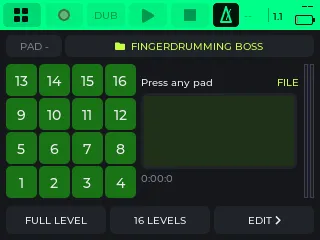
Pad 1 · Sampler. Plays the loaded kit on the 16 pads and lets you edit each pad’s sound. If no kit is loaded, the kit browser opens first.
- Top row: back, the pad you hit last (in its colour), and the kit’s name. Tap the kit’s name to open the kit browser.
- Middle: the waveform of the last pad’s sample, with FILE (the file name) or a live picture of the sound, the time under it and a level meter beside it.
- Bottom: FULL LEVEL (every hit plays at full velocity), 16 LEVELS (the pad you hit last is spread over all 16 pads, at 16 levels from soft to loud, or 16 pitches a semitone apart) and EDIT.
- The pads light in the kit’s colours: faint at rest, full while they sound.
EDIT opens the pad editor. Hit a pad to edit that one.
- Top: the pad (turn to change its colour), its sample (tap to pick another), REV (play it backwards), the mode: 1-SHOT (plays to the end), HOLD (stops when you let go) or LOOP (plays the sample over and over; hit the pad again to restart it), the copy button (two pages; then hit the pad to copy onto).
- Turned values: VOL, PAN, PITCH (−12 to +12 semitones), HP (cuts the lows), LP (cuts the highs), CHOKE (pads in the same choke group cut each other off).
- START and END trim the sample. First press of the encoder: the marker moves one step of the picture per click of the encoder. Second press: one millisecond per click, zoomed in. Third press: done.
- PLAY plays the trim once, LOOP plays it round and round, FULL puts the markers back at the ends, DEL (press twice) takes the sample off the pad.
Every change is saved with the kit. You can change kits while playing. More: Play and Your sounds.
Sequencer
Section titled “Sequencer”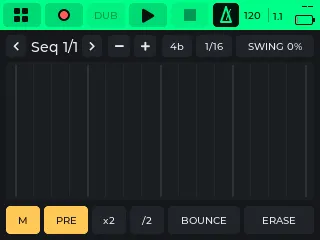
Pad 2 · Seq. A loop recorder. Play the pads while it loops, and it records what you play. The loop keeps running after you leave the app.
- Top row: ◀ and ▶ step through the scenes; the scene name (for example Seq 1/1) opens the scene window. − halves the scene’s length and + doubles it (up to 8 bars); the bars button (for example 4b) steps through 1, 2, 4 and 8 bars. Making a scene shorter this way deletes the notes past the new end; making it longer adds empty bars. The grid button (for example 1/16) sets how notes snap; SWING sets the swing amount.
- Middle: sixteen lanes, one per pad. Each note is a tick in its pad’s colour, brighter the harder you hit. A playhead runs over them.
- Bottom: M (the click), PRE (count-in), x2 (double the length and copy the notes into the new half), /2 (keep the first half), BOUNCE, ERASE.
- REC and DUB on the transport bar record and overdub; play and stop run the loop.
- Hold ERASE and hit a pad: that pad’s lane is cleared.
- BOUNCE plays the scene once and writes it as a clip into the open arrangement, for Arrange.
- Opened from an Arrange track, the bottom row starts with ARR (back to Arrange) and EDIT instead of M and PRE.
The scene window (tap the scene name): BPM, + ADD and − DEL for scenes, the source button (KIT plays the loaded kit), SYNC, and Done.
While a computer sends MIDI clock, the tempo follows it and the BPM shows in blue. More: Make a track.
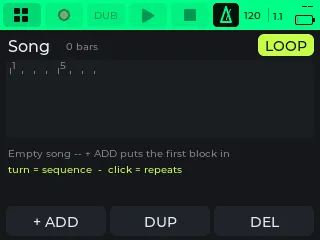
Pad 3 · Song. Puts the Sequencer’s scenes in order, each played a number of times: for example Seq 1 ×4, Seq 2 ×4, Seq 1 ×2.
- The song is drawn on a bar ruler. Each block is as wide as it plays, in its scene’s colour, with a playhead while it runs.
- Encoder: turn to change the selected block’s scene; click to set its repeats; click again to go to the next block. Tap a block to select it.
- + ADD adds a block, DUP copies the selected block and DEL removes it. LOOP plays the song round and round.
- Play on the transport bar plays the song while this screen is open; scenes change on the bar line.
The Song is saved with your scenes in crosspad/sequences.json, one file for all kits. More: Make a track.
Arrange
Section titled “Arrange”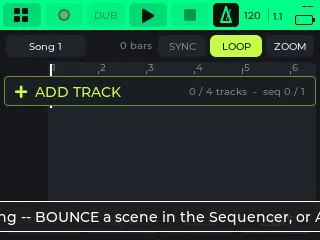
Pad 4 · Arrange. The main place to build a track. What you make here is an arrangement, separate from the Song app’s chain of scenes. An arrangement has four tracks: four audio tracks, or one sequencer track and three audio tracks. Arrangements are saved in the SONGS/ folder on the card.
- Top: the arrangement’s name (tap to pick another or start a new one), the position, SYNC (the Sequencer plays along, locked to the arrangement), LOOP, ZOOM.
- Lanes: a header per track shows its number and what it holds (AUD or KIT). Tap a header for its menu (BOUNCE a sequencer track to audio, DELETE). Hold a header for MIX. + ADD TRACK adds one while there is room: AUDIO opens the Recorder to fill it, SEQ (then SAMPLER) opens the Sequencer with the loaded kit.
- Buttons: MOVE, DUP and DEL act on the selected block. EDIT holds the editing: a clip from the arrangement’s library onto a track, a cut at the playhead, the loop region, copy and paste by bars, merging tracks into one clip, and the length. Hold EDIT to open the selected track in the app that made it.
- MIX: a fader in dB and a mute (M) for each of the four tracks.
- Encoder: turn to walk the blocks, click to select one. Turn MOVE one bar per click of the encoder; press again to finish.
In the arrangement’s window, Export to Ableton Live writes it as an .als file in its folder, for Ableton Live 12. More: Make a track.
Recorder
Section titled “Recorder”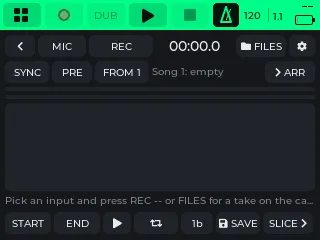
Pad 5 · Record. Records a take and trims it to a loop.
- Top: back, the input (MIC, LINE, PADS or USB — click to cycle), REC/STOP, the take’s time, and FILES (open any WAV on the card).
- SYNC records over the open arrangement from a chosen bar, so the take lines up with it. PRE counts in one or two bars first. ARR (with an arrow) puts the loop on a track in Arrange.
- Meter: the input’s left and right level, always on.
- START and END set the loop, turned the same way as in the pad editor. The loop button (two circling arrows) plays it round and round. The bars button (1b, 2b, 4b or 8b) says how many bars it is, which sets its tempo. SAVE writes the loop as its own file. SLICE takes it to the Slicer.
Takes are saved in the crosspad/recordings/ folder on the card, at most 10 minutes each. More: Your sounds.
Slicer
Section titled “Slicer”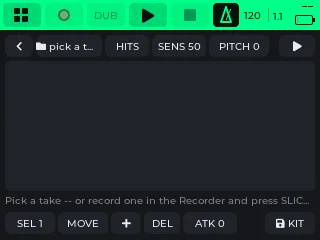
Pad 6 · Slicer. Chops a loop into up to 16 slices, one per pad, and saves them as a kit.
- Top: back, the file (tap to pick a take), the mode, its value, PITCH (−12 to +12 semitones; higher is faster), and the play button (▶, the whole loop, round and round).
- Modes: HITS cuts at each hit (the value is the sensitivity); EQUAL cuts equal parts (the value is how many); FREE lets you cut by ear: hit a dark pad to cut the playing loop there.
- Tools: SEL picks a slice (turned; you hear each one), MOVE moves its start, + splits it, DEL joins it to the one before, ATK sets every slice’s attack, KIT saves the slices as a kit.
Outside FREE, the pads play their slices. A kit saved with KIT goes to the USER list of the kit browser. More: Your sounds.
Pad Mixer
Section titled “Pad Mixer”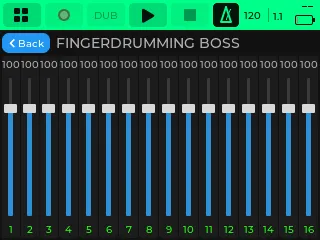
Pad 10 · Pad Mix. Sixteen faders, one for each pad’s volume in the loaded kit.
- Each fader shows its value on top and the pad number below, in the pad’s colour.
- Hit a pad to pick its fader. Press the encoder to grab the fader and turn to move it; while you hold it, hitting other pads does not change the selection.
- Changes are heard at once, so you can ride them against a running loop.
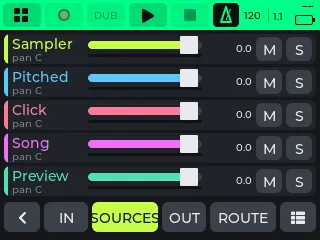
Pad 11 · Mixer. The CrossPad’s mixing desk and signal router. The tabs are along the bottom:
- IN — what comes in: the built-in mics, the line inputs and USB audio from the computer. Each has its GAIN and its monitor (which outputs you hear it on). The pair buttons at the top pick which input pair you hear: the built-in mics or a line pair.
- SOURCES — what the CrossPad plays: the sampler, the pitched instrument, the click, the song, the Recorder’s and Slicer’s preview.
- OUT — the masters: one fader per output, named as on the screen, and the USB recording bus.
- ROUTE — which source goes to which output, and how loud.
- PRESETS (the list icon) — save the whole desk under a name and load it back. STREAM, BEATS and SAMPLING are starting points. UNDO puts back what a load replaced.
Each channel is a row: its name, a fader in dB with a meter under it, mute, and solo (MON on inputs). Tap a channel’s name for the rest: gain, monitor, pan and sends. More: Make a track.
DAW Control
Section titled “DAW Control”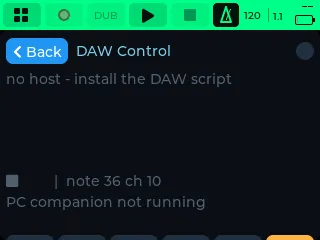
Pad 12 · DAW. Turns the CrossPad into a controller for a music program on your computer. The pads play the program’s instrument, the program colours the pads, and the screen shows three lines of text from it. It works with FL Studio and REAPER.
- The screen shows the program’s name, its three text lines, the transport state and a beat dot. It says no host until a program answers.
- The bottom bar picks what the CrossPad sends as USB audio: Mics, Line in, Spk bus, HP bus or Mix. USB audio switches the main USB port into USB audio mode and back.
- Knock the case twice to switch the pads to the control layout (play, stop, record, pattern, metronome, undo and mutes). Knock twice again for the pads.
DAW Control needs a small script in your music program. Setup: see With a computer.
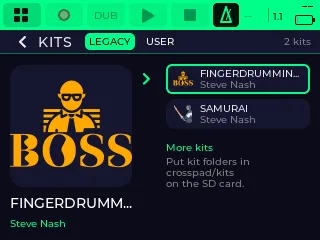
Pad 13 · Kits. The kit browser: pick the kit the pads play. It also opens by itself when an app needs a kit and none is loaded, and from the kit name in the Sampler.
- A cover on the left, one row per kit on the right.
- Two lists, LEGACY (the kits the CrossPad came with) and USER (kits you made on it). Switch lists with the LEGACY and USER buttons at the top. The browser opens on the list of the kit that is loaded.
- In USER: + NEW makes an empty kit of your own, which you fill in the Sampler’s pad editor. EDIT opens the selected kit’s card: its name, author, description and tempo.
While the SD card is still being read, it says Reading SD card…. With no card, it says No SD card - reinsert or restart. Kits live in the crosspad/kits/ folder on the card. More: Play.
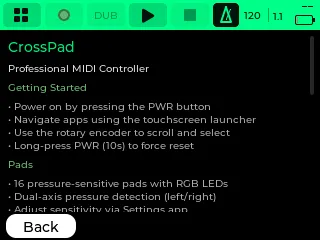
Pad 14 · Help. A short help text on the CrossPad itself. Scroll it with the encoder. For the full guide, see these pages.
Firmware
Section titled “Firmware”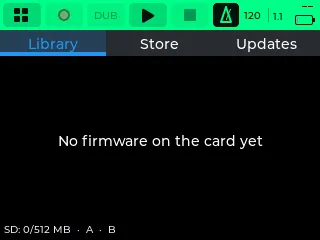
Pad 15 · Update. The Firmware app installs and switches firmware. Three tabs:
- Library — the firmware packages on your SD card and the firmware in slots A and B. The running one has a play mark.
- Store — every firmware crosspad.app offers, Official first, then Community (with a warning sign). Pick a tile for its card: What’s new, Older versions, and Install or Download.
- Updates — newer versions of the firmware you have, each with Update, plus Check now and the Over USB block for browser updates.
The steps are in Updates.
Settings
Section titled “Settings”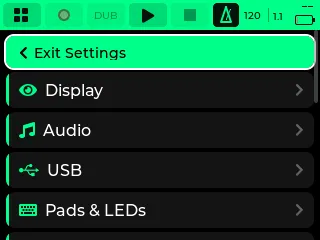
Pad 16 · Setup. The Settings app: all settings, by category: Display, Audio, USB, Pads & LEDs, Vibration, MIDI, Analog / Velocity, Backup (SD), Programming, Info, System, Motion MIDI, BLE MIDI, WiFi, Updates. Each one is listed in Settings.