Make a track
Goal: Record a loop on the pads, build it into a track, mix it, and keep it safe on the card and on your computer.
You need: your CrossPad with a kit loaded (see Play). For the last section, a USB-C cable and a computer.
The CrossPad has three places for a track, from small to big:
- Sequencer (pad 2, Seq on the MODE map): a loop you record on the pads. A loop is called a scene; you can have up to 8.
- Song (pad 3): your scenes in a row, each played a number of times.
- Arrange (pad 4): an arrangement with 4 tracks of recorded audio and loops, on a timeline. It can be exported to Ableton Live.
The Song and Arrange are separate. The Song is one list of your scenes. An arrangement is a project of its own with audio tracks, and you can have many. On the screen, arrangements are named Song 1, Song 2 and so on.
Every one of them follows the transport bar at the top of the screen: REC, DUB, PLAY (▶), STOP (■), the metronome and BPM. See Play.
Record a loop
Section titled “Record a loop”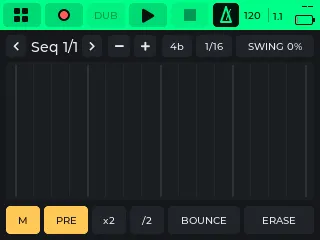
-
Open Seq (pad 2).
You should see: the Sequencer: Seq 1/1 at the top, 16 empty lanes in the middle (one per pad), and M, PRE and BOUNCE among the buttons at the bottom.
-
Set the tempo with the tempo number (BPM) in the transport bar, as in Set the tempo.
You should see: the new tempo in the transport bar. It is the tempo of the whole CrossPad.
-
Switch on the click with M (the same switch as the metronome in the transport bar), and if you want a count-in, PRE (one bar).
You should see: M and PRE lit.
-
Press REC in the transport bar.
You should see: with PRE on, the transport bar turns amber while it counts in. Then it turns red: you are recording. The playhead runs across the lanes.
-
Play the pads.
You should see: a tick in the pad’s colour for every hit, brighter the harder you hit. When the loop starts again, it plays what you recorded, and every pass after that adds what you play on top.
-
Press STOP when you are done.
You should see: the transport bar is no longer red and the playhead stops. Your notes stay in the lanes. PLAY plays the loop again.
More ways to work on a loop:
- DUB while the loop plays adds a layer, and DUB again stops adding while the loop keeps playing. REC while it plays records over what is there for one pass, then layers like DUB.
- ERASE: hold it and hit a pad, and that pad’s lane is emptied.
- − and + halve or double the scene’s length, up to 8 bars; new bars are empty. x2 doubles the scene and copies the notes into the new half, /2 halves it.
- 4b shows the length in bars; tap it to step through 1, 2, 4 and 8.
- 1/16 is the grid your hits snap to. Tap it to step through 1/4, 1/8, 1/8 triplets, 1/16, 1/16 triplets, 1/32 and free (no snapping).
- SWING gives the beat a shuffle.
The loop keeps playing when you leave the Sequencer, so you can play the Sampler or open the Pad Mixer over it. Scenes are saved on the card by themselves.
Scenes
Section titled “Scenes”Tap the scene name (Seq 1/1) to open the SCENE window. ADD makes a new empty scene, DEL removes the one on screen (the last scene always stays), and Done closes the window. The arrows on each side of the name switch scenes. A switch waits for the end of the loop, so the beat never breaks.
The KIT button in the same window shows what the pads record: the loaded kit.
Your scenes belong to the CrossPad, not to a kit. Load another kit and the same loop plays on the new kit’s pads.
Chain scenes into the Song
Section titled “Chain scenes into the Song”The Song (pad 3) puts your scenes in a row: for example Seq 1 four times, Seq 2 four times, then Seq 1 twice.
-
Open Song (pad 3).
You should see: Song at the top with LOOP, a bar ruler, and the blocks of your Song. An empty Song says Empty song — + ADD puts the first block in. At the bottom: + ADD, DUP and DEL.
-
Press + ADD.
You should see: a block in its scene’s colour, as wide as it plays.
-
Turn the encoder to choose the block’s scene. Press it, then turn to set how many times it repeats. Press again to go to the next block. You can also tap a block to select it.
You should see: the line under the timeline: Block, its scene and repeats (for example Seq 2 x4) and its length in bars.
-
Press PLAY in the transport bar.
You should see: the playhead runs across the blocks, and the scene changes on the bar line. With LOOP on, the Song starts again at the end.
DUP copies the selected block and DEL removes it. The Song is saved together with your scenes.
Build an arrangement
Section titled “Build an arrangement”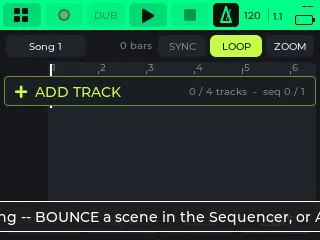
Arrange (pad 4) is where a full track is put together: 4 tracks, either four audio tracks, or one sequencer track and three audio tracks. Each arrangement is a project of its own.
-
Open Arrange (pad 4).
You should see: your last arrangement, or an empty Song 1 the first time, with + ADD TRACK under the tracks. To start another one, tap its name at the top and press + NEW.
-
Press + ADD TRACK.
You should see: New track with two choices, AUDIO (a recorded or loaded loop) and SEQ (pads recorded as notes), and CANCEL.
-
Choose AUDIO.
You should see: the Recorder.
-
Record a take and set its markers, as in Record a sound. Then press → ARR.
You should see: a window To Arrange with TRACK, BAR and PUT.
-
Set TRACK and BAR if you like, and press PUT.
You should see: Arrange again, with your take as a block on its track, showing its waveform.
-
Press PLAY in the transport bar.
You should see: the playhead runs over the tracks and you hear the arrangement.
Choose SEQ in step 3 instead, then SAMPLER to play the track with the loaded kit. The Sequencer then opens on a scene of the track’s own, with ← ARR to go back and EDIT to open the Sampler.
Turn a loop into audio: BOUNCE
Section titled “Turn a loop into audio: BOUNCE”BOUNCE in the Sequencer plays the scene once and records it as a clip into the arrangement that is open in Arrange. Arrange always has one open: until you make another, it is Song 1.
-
In the Sequencer, press BOUNCE.
You should see: a window asking which track the bounce goes on, with Track 1 to Track 4 and Cancel.
-
Choose a track.
You should see: Bouncing Seq 1 to track and the track, while it plays once. Then Done: with the clip’s file name, is on its track in Arrange. Press OK.
Work with blocks and tracks
Section titled “Work with blocks and tracks”- Turn the encoder to walk the blocks, press to select one. MOVE moves it (one bar per step), DUP copies it, DEL removes it.
- EDIT opens the arrangement’s editing: put a clip from the project onto a track, or cut a block at the playhead.
- In EDIT you can also set a loop region, copy and paste it, merge tracks into one clip, and set the arrangement’s length. More on Built-in apps.
- A long press on EDIT opens the selected track in the app that makes it.
- Tap a track’s header for its menu: BOUNCE turns a sequencer track into audio, so you can add another sequencer track. DELETE removes the track.
- Hold a track’s header to open MIX: a fader for each track, in dB, with M to mute it. The mix is saved with the arrangement.
- At the top: SYNC lets the Sequencer’s loop play along while the arrangement plays, LOOP repeats the loop region, ZOOM changes how much of the arrangement you see.
Each arrangement keeps its own tempo. When you open it, the whole CrossPad takes that tempo. Change it in the arrangement’s settings or with BPM in the transport bar.
Export to Ableton Live
Section titled “Export to Ableton Live”Arrange writes the arrangement as an Ableton Live Set, which opens in Live 12.
-
In Arrange, tap the arrangement’s name at the top. In the list, the open arrangement is marked and shows EDIT on its row: click that row.
You should see: its settings: Tempo, Name, Export to Ableton Live and Delete song.
-
Choose Export to Ableton Live.
You should see: Writing the Ableton Live Set …, then a window Ableton Live with Live Set written and a short summary. Press OK.
-
Copy the arrangement’s folder, for example
SONGS/Song 1, to your computer as in Back up your work, and open the.alsfile in it with Live.
Each track becomes a Live track, each block a clip on its bars, with the tempo, faders, mutes and loop.
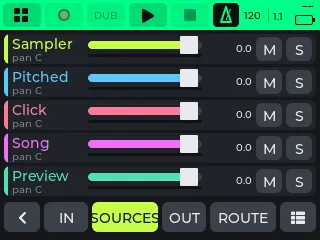
Mixer (pad 11) controls every sound that comes in and goes out. The tabs along the bottom:
- IN: the built-in mics, the line inputs and USB audio from your computer, with their input GAIN and MONITOR (which output you hear them on).
- SOURCES: what the CrossPad plays, such as the Sampler, the Song and the click.
- OUT: one fader per output, named as on the screen, and the USB output (what your computer records). See Play.
- ROUTE: which source goes to which output, and how loud.
- The list icon: presets. STREAM, BEATS and SAMPLING are starting points. LOAD loads one, SAVE saves the whole mixer under that preset, and UNDO puts back what a load replaced.
Each channel is one row: a fader in dB with a meter, M to mute it and S to solo it (MON on inputs). Tap a channel’s name for the rest, such as gain, monitor and pan. The Mixer keeps your settings when you close it.
Pad Mixer
Section titled “Pad Mixer”Pad Mix (pad 10) shows 16 faders, one per pad, for the loaded kit. It works while a loop plays, so you can balance the beat as you listen.
-
Open Pad Mix (pad 10).
You should see: the kit’s name at the top and 16 faders, each with its value above it and the pad number in the pad’s colour below.
-
Hit a pad to pick its fader, then press the encoder and turn it to set the level.
You should see: the fader and its value move, and the pad plays louder or softer.
-
To keep the levels, open Sampler (pad 1) and press the power button briefly.
You should see: Unsaved changes. Choose Save.
Where your projects live
Section titled “Where your projects live”Everything lives on the SD card; see What is on the card. Scenes and the Song share one file, crosspad/sequences.json, for all kits. Each arrangement is a folder in SONGS/ with its clips, plus the .als file after an export.
The CrossPad saves your work by itself as you go, except for two things: kit changes (the Unsaved changes question in the Sampler) and Mixer presets (SAVE).
Back up your work
Section titled “Back up your work”Your music lives only on the SD card. Copy it to a computer from time to time.
-
Show the card to your computer: Settings (pad 16, labelled Setup on the MODE map) → USB → SD card as USB drive → Start → Restart. The full steps are on Your sounds.
You should see: the USB Transfer screen, and a new drive on the computer.
-
Copy the folders
SONGSandcrosspadfrom the drive to a folder on your computer. -
Eject the drive on the computer, then press Exit and restart on the CrossPad.
You should see: the CrossPad restarts as usual.
To put a backup back, copy the folders onto the card the same way. This replaces what is on the card now. Your settings are backed up separately: see Settings.
- With a computer: play your DAW from the pads and record the CrossPad over USB.
- Your sounds: record and chop new sounds.
- Built-in apps: every screen of every app.