Updates
Goal: Put the newest firmware on your CrossPad, and get back to a working one if an update goes wrong.
Pick one way:
- Over WiFi, on the CrossPad itself. No computer needed. See Update over WiFi.
- From your browser, with the CrossPad on a USB cable. See Update from your browser.
- From a package on the SD card, with no network. See Install from the SD card.
Update over WiFi
Section titled “Update over WiFi”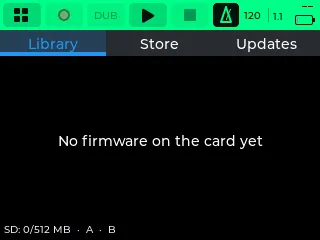
You need a WiFi network with internet access. Do this right after you switch the CrossPad on, before you load a kit. With a kit loaded, the CrossPad offers to restart in network mode; see “If it says Not enough memory” below.
-
Open Settings (pad 16, labelled Setup on the MODE map) → WiFi. Switch WiFi allowed on. Next to Find networks, press Scan. Pick your network and type its password on the on-screen keyboard (at least 8 characters).
You should see: Status reads Connecting to your network, then Connected: with the network name. The network appears under Saved networks. The CrossPad saves a network only after it has connected, and remembers up to 5. More WiFi settings: Settings → WiFi.
-
Open Firmware (pad 15, Update on the MODE map) and choose the Updates tab. Next to Channel, check at startup, press Settings. It opens Settings → Updates. Set Channel to Beta.
You should see: the Channel row reads Beta. Updates are published on the Beta channel.
-
Go back to Firmware (pad 15) → Updates and press Check now.
You should see: Status reads Checking…, then the running version and the date of the check. Under For the kits on the card, each firmware with a newer version has a row like name old-version -> new-version with an Update button. (On this screen, “kit” means a firmware edition.)
Everything on the card is up to date. means there is nothing to install. No catalog on the card yet. means no check has worked yet: check that WiFi is connected and press Check now again.
-
Press Update on the row.
You should see: Status reads Downloading with a percentage, then Installing with a percentage. The download checks that the firmware is signed by CrossPad and undamaged. If it is interrupted, the next Update resumes it.
-
When the install is done, the CrossPad asks Run the new version now? (”… is installed in the other slot.”). Press Run.
You should see: Switching firmware, Restarting into and the slot letter, and Do not power off. The CrossPad restarts.
-
Do not switch the CrossPad off for 10 seconds after it restarts. If the new firmware does not start properly in that time, the CrossPad goes back to the old one by itself.
You should see: the MODE map. Settings → Updates → Running shows the new version.
Pressed Later in step 5? The new firmware waits in the other slot. Run it any time with Run the new version → Run on the Updates tab.
Check at startup is on, so the CrossPad also checks by itself each time it starts with WiFi, and once a day when it sits idle on the MODE map. Settings → Updates → Status then reads Update available: with the new version.
The Store tab lists every firmware crosspad.app offers. Pick a tile, read What’s new on its card, and press Install (download and install) or Download (download only, install later). Community builds carry a warning sign.
If the CrossPad asks a question first
Before it downloads, the CrossPad may ask:
- Replace the other firmware? The other slot holds a different firmware edition. Replace overwrites it.
- Community firmware The update is a community build that the CrossPad team has not tested. Continue goes ahead.
- Older version (only from the Store’s Older versions) You picked a version older than one you have. Install goes ahead.
Cancel on any of them keeps the firmware you have.
If it says Not enough memory (network mode)
With a kit loaded, the CrossPad offers to restart in network mode for WiFi. It asks Not enough memory — “WiFi does not fit beside what is running now. Restart in network mode? No sound and no kits until you exit.”
-
Press Restart.
You should see: the CrossPad restarts into a screen with three tabs, WiFi, Store and Updates, and an Exit button. There is no sound in this mode.
-
Use the Updates tab as in steps 3 to 5 above.
-
When you are done, press Exit (or click the power button).
You should see: the CrossPad restarts to the MODE map.
Update from your browser
Section titled “Update from your browser”The browser companion at https://play.crosspad.app/device updates the CrossPad over a USB cable. Use Chrome or Edge on a computer; other browsers cannot talk to the CrossPad.
-
Connect the main USB port of the CrossPad to the computer with a USB-C data cable.
-
Put the CrossPad in serial mode: Settings → USB → Mode → MIDI + Serial.
You should see: the message USB Serial+MIDI on — device re-enumerating (the computer reconnects to the CrossPad).
Another way: in Firmware → Updates, the Over USB part at the bottom has a Switch USB to … button (it switches to serial mode). It appears only while USB is in USB audio mode, and switches it to serial mode in one press.
-
In Chrome or Edge, open https://play.crosspad.app/device, go to its Firmware page and follow the page’s update steps. When your browser lists ports, pick Crosspad.
The companion may ask the CrossPad for serial mode itself. The CrossPad then asks USB serial mode? — “A computer asks for USB serial mode (files, updates, console). Allow only computers you trust.” Press Allow.
-
When the update starts, the CrossPad asks first: OTA Update — “Update to … (… MB). Restart required.” Press Update within 60 seconds. Leave Auto-accept updates unticked.
You should see: Updating Firmware… with a percentage and Do not disconnect!, then Update Complete! Restarting….
-
Do not unplug or switch off for 10 seconds after the restart.
You should see: the MODE map. Settings → Updates → Running shows the new version.
-
If you use USB audio, set Settings → USB → Mode back to MIDI + Audio.
You should see: the message USB Audio on — device re-enumerating.
If you used the Over USB button and close the Firmware app before updating, it asks Restore Audio? — “USB was in Audio mode. Restore it before closing?” Yes, restore goes back to USB audio mode.
Install from the SD card
Section titled “Install from the SD card”Use this when you have no network. It installs a firmware package that is already on the SD card. Usually a package gets there through a Download from the Store tab, made earlier on this CrossPad while it had WiFi. The package stays on the card in crosspad/firmware/ until you delete it.
-
Open Firmware (pad 15) and choose the Library tab.
You should see: one tile per package on the card, and a line like SD: … MB · A ▶ · B. The play mark shows which slot runs.
-
Pick the package’s tile. On its card, press Install and run.
You should see: Install firmware — “Install … to slot … and restart into it.” Press Install.
-
Wait for the install.
You should see: Installing with the package name, Writing to slot with a percentage, Verifying…, and Do not power off. The CrossPad then restarts into the new firmware.
The pad controller update
Section titled “The pad controller update”A second chip, the pad controller, reads the pads and the power button. A new firmware can bring a new version for it. After such an update, the CrossPad asks when it starts:
STM32 update required (or STM32 update available), with the running and the new version, and “About 15 s, pads off meanwhile; the STM32 reboots at the end.” (On screen, STM32 means the pad controller.)
-
Press Update.
You should see: Flashing STM32 with the new version, Pads are off. Do not power off., and a progress bar.
-
Wait about 15 seconds.
You should see: Done: STM32 with the new version, in green. The message closes by itself and the pads work again.
- Battery low: with less than 20 % battery and no charger, it does not update. It says “Battery under 20%, no charger: plug in and reboot to be asked again.” Plug in the charger and restart.
- Later: you are asked again at the next start. To start it yourself: Settings → Programming → Update (on the row with the new pad controller version).
- It never installs an older version.
If an update fails
Section titled “If an update fails”The new firmware did not start
Section titled “The new firmware did not start”You see: after the update, Settings → Updates → Running still shows the old version.
The CrossPad went back to the firmware it had before, by itself. Everything works as before.
-
Open Firmware (pad 15) and choose Library.
You should see: the tile of the failed firmware, dimmed, with a warning sign and rolled back.
-
Open the tile. It says “In slot … - it did not start last time” and offers two buttons:
- Try this slot again asks “Slot … did not start last time. Try it once more?”; press Try again. Use it if something has been fixed since — for example the SD card was missing or the battery was flat.
- Reinstall writes the firmware into the slot again from scratch. Use it if trying again does not help.
You should see: the CrossPad restarts into that firmware.
A WiFi download failed
Section titled “A WiFi download failed”Status says Error: and why. The common ones: WiFi is off - see Settings > WiFi, no WiFi network in reach, wrong WiFi password, the SD card is full, no SD card, the download was damaged, the package is not signed by CrossPad. Fix the cause and press Update again; the download resumes.
A browser update failed
Section titled “A browser update failed”The CrossPad says Update Failed! and keeps the firmware it has. Check the cable, put the CrossPad in serial mode again and repeat Update from your browser.
The pad controller update failed
Section titled “The pad controller update failed”The CrossPad shows STM32 update failed with Retry and Close.
- If the pads still work, the old pad controller firmware is kept. Press Retry, now or later.
- If the pads still do not respond after you switch off and on, the pad controller is in recovery mode. Open the Recovery page of the companion at https://play.crosspad.app/device in Chrome or Edge and follow it.
More fixes: Problems.
Link to your crosspad.app account
Section titled “Link to your crosspad.app account”Account linking opens soon.