Your sounds
Goal: Get your own samples onto the CrossPad, or record and chop new ones on it, and play them on the pads.
You need: your CrossPad with its microSD card in the slot. To copy files from a computer: a USB-C cable and a computer, or a microSD card reader.
The CrossPad keeps every sound on its SD card. You can fill the card from a computer, or make sounds on the CrossPad itself with the Recorder and the Slicer.
Copy files from your computer
Section titled “Copy files from your computer”The CrossPad can show its SD card to your computer as an ordinary USB drive. It works with Linux, macOS and Windows. While the card is a drive, the CrossPad plays no sound.
-
Connect the CrossPad’s main USB port to your computer. The second USB port cannot show the card. See CrossPad at a glance.
-
Open Settings (pad 16, labelled Setup on the MODE map) → USB. At SD card as USB drive, press Start.
You should see: a window SD card as USB drive that says the CrossPad restarts and audio stops, with Restart and Cancel.
-
Choose Restart.
You should see: the CrossPad restarts into a screen titled USB Transfer. It says the SD card is on your computer, shows the card size, and has an Exit and restart button. The status line reads Waiting for the computer, then Open on the computer. On the computer a new drive appears. (No drive? Check the cable, or use a card reader.)
-
Copy your files onto the drive. The next sections say where to put them.
You should see: Transferring… on the CrossPad while the computer writes, and a count of the megabytes read and written. A 100 MB kit takes about 3 minutes to copy. For large amounts of files, a card reader is quicker.
-
Eject the drive on the computer (Eject in Finder or Explorer, or your file manager’s eject button) and wait until the computer says it is safe.
You should see: Ejected - safe to exit on the CrossPad.
-
Press Exit and restart (tap it, press the encoder, or press the power button briefly).
You should see: the CrossPad restarts as usual and reads the card again. Kits you copied are now in the kit browser.
If you press Exit and restart while the screen reads Transferring…, the CrossPad asks Still transferring with Leave anyway and Wait. Choose Wait, eject on the computer, then exit.
Use a card reader
Section titled “Use a card reader”-
Switch the CrossPad off and take the microSD card out.
-
Put the card in a card reader on your computer, copy your files, and eject the card on the computer.
-
Put the card back in the CrossPad, then switch it on.
You should see: the CrossPad starts as usual. Kits you copied are in the kit browser.
What is on the card
Section titled “What is on the card”| Folder or file | What it holds |
|---|---|
crosspad/kits/ | Kits. One folder per kit. The CrossPad looks through this folder, and the folders inside it, every time it starts. |
crosspad/recordings/ | Your recordings and saved loops. |
crosspad/sequences.json | Your Sequencer scenes and your Song. |
SONGS/ | Your Arrange arrangements, one folder each. |
crosspad/mixer/ | Mixer presets. |
crosspad/firmware/ | Firmware packages for an offline update. See Updates. |
crosspad/STARTUP.wav | Optional. If it is there, the CrossPad plays it when it starts. |
A kit is a folder with a kit file (kit.json) and its WAV files. The CrossPad writes the kit file for you when you make a kit on it. A folder of WAV files without a kit file is not a kit, but the CrossPad can still use the WAV files in it (see Make a kit from your own samples).
WAV files the CrossPad plays
Section titled “WAV files the CrossPad plays”- Format: 16-bit WAV, the usual uncompressed kind (“CD quality” in many audio editors), mono or stereo.
- Sample rate: 44100 Hz is best. The kits that come with the CrossPad use it.
- Not supported: 24-bit or 32-bit WAV files, and compressed files such as MP3. The CrossPad refuses them. Convert them to 16-bit WAV in your audio editor first.
- File names: letters with accents, such as ą, é or ü, work.
Up to 16 sounds can play at the same time.
Make a kit from your own samples
Section titled “Make a kit from your own samples”-
Copy your WAV files onto the card, as in Copy files from your computer. Put them in a folder of their own inside
crosspad/kits/, for examplecrosspad/kits/my samples/. That is where the CrossPad’s file browser opens. -
Open Kits (pad 13) and choose USER at the top.
You should see: the list of kits you made on this CrossPad, with + NEW and EDIT at the top. If you have none, the list says No kits of your own yet.
-
Press + NEW.
You should see: a new kit called NEW KIT (or NEW KIT 2, and so on) in the list, selected.
-
Turn the encoder to the new kit and press it, or tap it, to load it.
You should see: the kit browser closes. The kit is loaded.
-
Open Sampler (pad 1) and press EDIT at the bottom.
You should see: NEW KIT as the kit name at the top of the Sampler, then the pad editor. It says Hit a pad to edit it.
-
Hit the pad you want to fill. Then tap the sample button at the top. On an empty pad it reads pick a sample.
You should see: a file browser, open on
crosspad/kits/. Go back… at the top of a list moves up one folder. -
Open your folder, choose a WAV file and press Load.
You should see: the pad editor again, with your file’s name at the top and its waveform. Hit the pad: it plays your sample.
-
Repeat steps 6 and 7 for the other pads.
-
Press the power button briefly twice: once to leave the pad editor, once to leave the Sampler.
You should see: after the second press, a window Unsaved changes, with Save, Discard and Cancel. Choose Save. Your kit is now on the card and stays in the USER list.
In the pad editor you can also shape each pad:
- REV plays the sample backwards.
- The mode button switches between 1-SHOT (plays to the end), HOLD (plays while you hold the pad) and LOOP.
- VOL, PAN, PITCH (−12 to +12 semitones), HP (cuts the lows), LP (cuts the highs) and CHOKE (pads in the same choke group cut each other off) are set with the encoder.
- START and END trim the sample. PLAY plays the trimmed part once, LOOP plays it over and over, FULL resets the trim, and DEL (pressed twice) takes the sample off the pad.
- The copy button (two pages), then hit another pad and confirm with Copy: the whole pad, sample, trim and settings, goes onto that pad.
More on every button: Built-in apps. To rename your kit or set its tempo, open Kits → USER, select the kit and press EDIT.
Copy a whole kit
Section titled “Copy a whole kit”Do you have a kit folder that already has its kit file, for example from another CrossPad owner? Copy the whole folder into crosspad/kits/ and leave USB transfer with Exit and restart. The kit appears in the kit browser: under USER if it was made on a CrossPad, otherwise under LEGACY.
Record a sound
Section titled “Record a sound”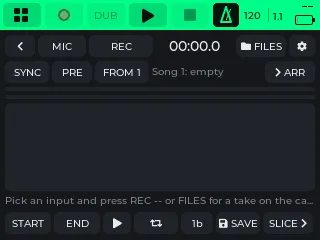
The Recorder (pad 5, Record on the MODE map) records from the built-in mics, the line inputs, the CrossPad’s own pads, or your computer.
-
Open Record (pad 5).
You should see: the Recorder. The line at the bottom says Pick an input and press REC — or FILES for a take on the card. The meter shows the input level.
-
Tap the input button (it starts on MIC) until it shows the input you want:
- MIC: the built-in mics.
- LINE: the line inputs. Which pair you hear is chosen in the Mixer (pad 11) → IN.
- PADS: what you play on the pads, with no cable at all.
- USB: what your computer plays. This needs USB audio mode (see With a computer).
You should see: the meter move when there is sound at that input. Meter too low? Raise the input’s GAIN in the Mixer (pad 11) → IN.
-
Press REC and play or sing.
You should see: the button turns into STOP and the time counts up.
-
Press STOP.
You should see: the waveform of your take, with the START and END markers. The take is already saved in
crosspad/recordings/, asrec_001.wav,rec_002.wavand so on (16-bit stereo). -
Set START and END around the part you want. Press the encoder on a marker, turn it to move the marker, press again for fine steps, and once more when you are done. The loop button (two circling arrows) plays the part between the markers over and over.
-
Press SAVE to keep only that part as a file of its own.
You should see: Saved the loop as and the file name, a
loop_001.wav(and so on) incrosspad/recordings/.
A take can be up to 10 minutes long. FILES opens any WAV on the card in the Recorder, so you can trim a file you copied from your computer the same way. To get your recordings onto a computer, copy the crosspad/recordings/ folder as in Copy files from your computer.
The other buttons work with an arrangement in Arrange: SYNC records over it (with PRE for a count-in), and → ARR puts the loop on an Arrange track. When you press PUT there, the Recorder says On track … from bar … — open Arrange to hear it with the beat. See Make a track.
Chop a loop into a kit
Section titled “Chop a loop into a kit”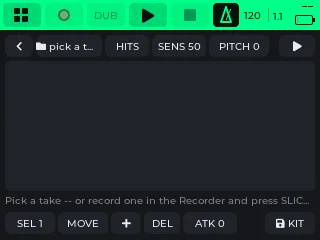
The Slicer (pad 6) cuts a loop into up to 16 slices, one per pad, and saves them as a kit.
-
In the Recorder, with your loop between the markers, press SLICE. Or open Slicer (pad 6) and tap pick a take at the top to choose a recording.
You should see: the Slicer with your loop’s waveform, cut into numbered slices. The pads play the slices.
-
Choose how to cut with the mode button:
- HITS: a slice at every hit. The value next to it (SENS) is how sensitive the cutting is.
- EQUAL: equal parts. The value (N) is how many.
- FREE: you cut by ear. Hit a pad to start the loop. While it plays, hit an unlit pad: the loop is cut there and that pad lights. Each lit pad then plays from its cut.
You should see: the slices on the waveform change as you turn the value.
-
(Optional) Fine-tune the cuts: SEL picks a slice, MOVE shifts it, + splits it, DEL joins it to the one before. More on Built-in apps.
-
Press KIT.
You should see: a keyboard with Kit name, filled in with the loop’s file name in capitals. Type a name and confirm.
-
Wait for the kit to be written.
You should see: Saved the kit and its name, — it is in Kits now.
Your new kit is in Kits (pad 13) → USER. Load it and play it like any kit.
- Make a track: loops, scenes and arrangements from your kits.
- Play: kits, pads and the transport bar.
- Settings: every setting, including USB.