Play
Goal: Choose kits, shape how the pads respond, set the volume, use the transport bar, and switch on vibration and Motion MIDI.
You need: a CrossPad that is switched on, with a kit loaded (see Get started).
Choose a kit
Section titled “Choose a kit”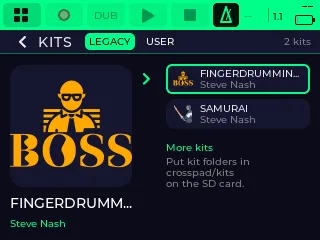
A kit is a set of sounds, one or more per pad. The kits live on the microSD card.
-
Open the kit browser: hit pad 13 (Kits) on the MODE map, or tap the kit name at the top of the Sampler.
You should see: the kit browser. Along the top: KITS (back), LEGACY and USER. Below, a list of kits. The kit that is loaded now has a coloured edge.
-
Choose a list: tap LEGACY or USER.
LEGACY holds the kits your CrossPad came with. USER holds the kits you made on the CrossPad, for example with + NEW or with the Slicer. Kits you copy onto the card from a computer: see Your sounds.
You should see: the list changes. With USER chosen, the buttons + NEW and EDIT appear next to it. An empty USER list says No kits of your own yet.
-
Turn the encoder through the list and stop on a kit.
You should see: after a moment, the kit’s cover picture on the left. A kit without a picture shows a letter instead. Turning fast skips several kits at a time.
-
Press the encoder, or tap the kit.
You should see: the kit loads and the browser closes. Opened from the Sampler, you are back in the Sampler with the new kit’s name at the top. Opened from the MODE map (pad 13), you are back on the MODE map: hit pad 1 to play the kit in the Sampler.
You can change kits while a loop is playing. The new kit takes over without a gap.
Making your own kits, and the + NEW and EDIT buttons, are on Your sounds.
Play the pads
Section titled “Play the pads”Each pad feels three things:
- How hard you hit it. This is the velocity: a harder hit plays louder.
- How hard you keep pressing after the hit. This is the pressure.
- Where your finger sits, more to the left or to the right. Each pad has two sensing cells for this.
The CrossPad sends pressure and finger position as MIDI on the second USB port and over Bluetooth, for music software to use: see With a computer.
Change how the pads respond to your hits
Section titled “Change how the pads respond to your hits”-
Open Settings (pad 16, labelled Setup on the MODE map) and choose Analog / Velocity.
You should see: the sections Velocity, Pressure / Pan CC, Stream rate and Per-Pad.
-
Under Velocity, set Curve: Linear (the default), Exp Soft or Exp Hard. Set Floor to how loud the softest hit plays (0 to 127). Raise it if soft hits get lost.
You should see: the new value on the row.
-
To see the result, choose Per-Pad Tuning → Open, then hit a pad.
You should see: a screen that says Press a pad to select, then the pad’s number with its own settings. The Last Hit row shows the velocity of each hit (VEL). Hit softly and hard, and compare the numbers with the curve you chose.
The same screen lets you tune one pad on its own: Sensitivity, L/R Ratio (the balance between the pad’s left and right cells), Velocity Curve and Velocity Floor. Each setting is described on Settings.
Pad lights
Section titled “Pad lights”Every pad has its own RGB light. In the Sampler the pads glow faintly in the kit’s colours and light up fully while they sound. On the MODE map they show the colours of the app cells.
-
Open Settings → Pads & LEDs and move RGB Brightness (0 to 255, default 100).
You should see: the pads get brighter or darker as you move it.
Volume and outputs
Section titled “Volume and outputs”The CrossPad has built-in speakers, a headphone out and a line out for a mixer, an amplifier or a recorder. You set the levels in two places: Settings → Audio and the Mixer.
-
Open Settings → Audio. Turn the encoder down (or drag the page up) to Output Volume.
You should see: Speakers (auto on play), Speakers and Headphones.
-
Move the Speakers and Headphones sliders (0 to 100; defaults 64 and 64).
You should see: the value on the row. Hit a pad: it plays at the new level.
-
To silence the built-in speakers completely, switch off Speakers (auto on play).
You should see: the switch turns off. Hit a pad: the speakers stay silent. Switched on, the speakers power up by themselves whenever there is something to play.
The Mixer’s outputs
Section titled “The Mixer’s outputs”For finer control, open the Mixer (pad 11) and its OUT tab. It has one fader for each output, named as on the screen, plus the USB output: what your computer records from the CrossPad. Each fader shows its level in dB, with a meter and a mute button.
To hear the built-in mics or a line input while you record, see Your sounds. More about the Mixer: Make a track and Built-in apps.
The transport bar
Section titled “The transport bar”The row of buttons at the top of the screen is the transport bar. It is the same in every app. From left to right:
| On the screen | What it does |
|---|---|
| MODE (four small squares) | Opens the MODE map; tap again to close it. Hold it to see the status icons. |
| REC (a ring) | Records. The whole bar turns amber while it waits to start (for example during a count-in) and red while it records. |
| DUB | Overdub: records on top of what is already playing. |
| PLAY (▶) | Starts playback. |
| STOP (■) | Stops. |
| Metronome (a small metronome) | Switches the click on and off. It is lit while the click plays. |
| The tempo number (no label) | The tempo of the whole CrossPad, in BPM. It shows -- when the app on screen has no tempo. |
| The position | Where you are in the loop or song. In Arrange, highlight it and turn the encoder while stopped to choose where PLAY starts. |
| The voices | How many sounds play at once, and the limit. At the limit it shows in reversed colours: the next hit cuts off an older sound. |
| Battery | Tap it to see the status icons. |
The buttons still work while the MODE map is open, so you can start or stop a loop while you choose the next app. What REC, DUB, PLAY and STOP record and play depends on the app: see Make a track.
Set the tempo
Section titled “Set the tempo”-
Reach the transport bar: hold the power button for about half a second and let go, or turn the encoder past the last item on the screen. Then turn to the tempo number.
You should see: a highlight on the tempo number.
-
Press the encoder (or tap the number), turn to the tempo you want, and press again.
You should see: the number changes as you turn, and a playing loop follows it at once.
If a computer sends MIDI clock to the CrossPad, the computer sets the tempo. The tempo number is then locked, and trying to change it shows Tempo follows the host’s MIDI clock. See With a computer.
Status icons
Section titled “Status icons”Hold MODE, or tap the battery, to swap the transport bar for the status bar. It shows icons for WiFi, Bluetooth and the SD card. Tap its arrow to get the transport bar back.
Vibration
Section titled “Vibration”A small motor in the CrossPad gives short buzzes you feel under your fingers.
-
Open Settings → Vibration.
You should see: Vibration Enable, and below it On Touch and Audio to Vibe, among others. Both are on by default.
-
Switch off what you do not want. On Touch buzzes when you touch the screen, and Audio to Vibe makes the CrossPad vibrate with the sound. Vibration Enable switches all of it off.
You should see: with Vibration Enable off, the rows below it disappear.
Motion MIDI
Section titled “Motion MIDI”Tilt or turn the CrossPad and it sends MIDI: control changes or pitch bend, like a mod wheel in your hand. It is off by default. The messages go out with the CrossPad’s other MIDI, for example to your music software: see With a computer.
-
Open Settings → Motion MIDI and switch on Enabled.
You should see: the switch turns on. Below it, Messages sent and four slots, Slot 1 to Slot 4. Each slot turns one movement into one MIDI message.
-
Set up a slot. Each slot has:
- On: whether the slot sends.
- Source: Tilt front/back, Tilt left/right, Turn X, Turn Y or Turn Z.
- Sends: Control change or Pitch bend.
- CC number: the controller number, for Control change.
- Channel: the MIDI channel, from 0 (MIDI channel 1) to 15 (MIDI channel 16).
By default, Slot 1 sends Tilt front/back as CC 1 (the mod wheel) and Slot 2 sends Tilt left/right as CC 74 (often the filter cutoff). Slot 3 and Slot 4 are off.
You should see: each change on its row.
-
Tilt the CrossPad. To see the Messages sent count, open Motion MIDI again.
You should see: Messages sent has gone up. If the CrossPad is connected to music software (see With a computer), the software receives the controller as you tilt.
- Your sounds: your own samples, recording and slicing.
- Make a track: loops, songs and Arrange.